Household money, on your own computer

Know where every dollar went.

Cashington turns your bank statements into one household ledger on your own computer. Import the month, file every row, check it against your balances and close it. Then see exactly where it went. No account, no cloud, and one price instead of a subscription.

  • Saved on your computer
  • Works offline
  • No account to create
  • From the maker of Eisenhour

Coming soon to the Microsoft Store for Windows, and as a signed download for Mac. Join the waitlist.

  1. Home: the month at a glance
  2. Import: statements and banks
  3. Cash Flow: every dollar
  4. Insights: where the money goes
  5. Reports: find anything
  6. Net Worth: own and owe
  7. Money in and Money out
  8. Accounts and bank connections
  9. Settings, About, dark mode
The real app with an invented household, the Riveras, page by page from the top of the menu to the bottom. It opens on Home and its calendar of paydays and bills, refreshes an optional bank connection on Import, files a farmers-market row from Cash Flow in its drawer, follows the Money map, builds a report of this year's groceries and opens the balance sheet. Then it goes through Money in, Money out, Accounts, Bank connections, Settings and About, and ends in dark mode. Every name and number is made up.

How a month works

Four steps, about once a month.

Cashington is built around a routine you can finish in an evening: bring the month in, file it, check it, close it. What you get back is a month you can explain to the dollar.

  1. Import

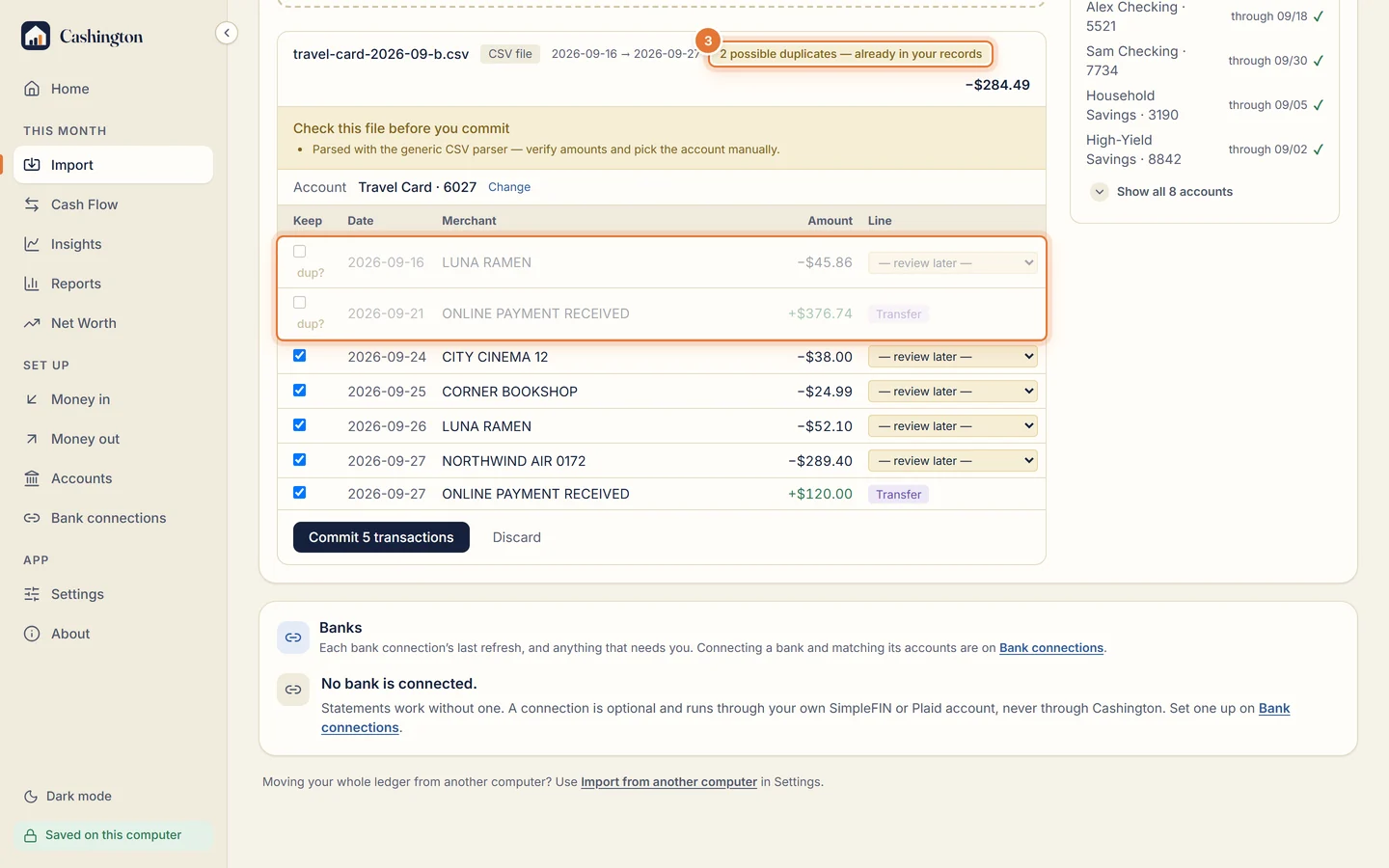
    Download a CSV from your bank or card and drop it on Import. You see every row before anything is saved. Rows already in your ledger are flagged as possible duplicates and left unticked, and a card payment is marked as a transfer. Nothing counts until you click Commit. Or connect your banks through your own SimpleFIN or Plaid account, and a refresh on Import brings the new rows in.

    The statement preview: 2 possible duplicates already in your records are marked dup? and unticked, and a card payment is marked Transfer.
  2. File

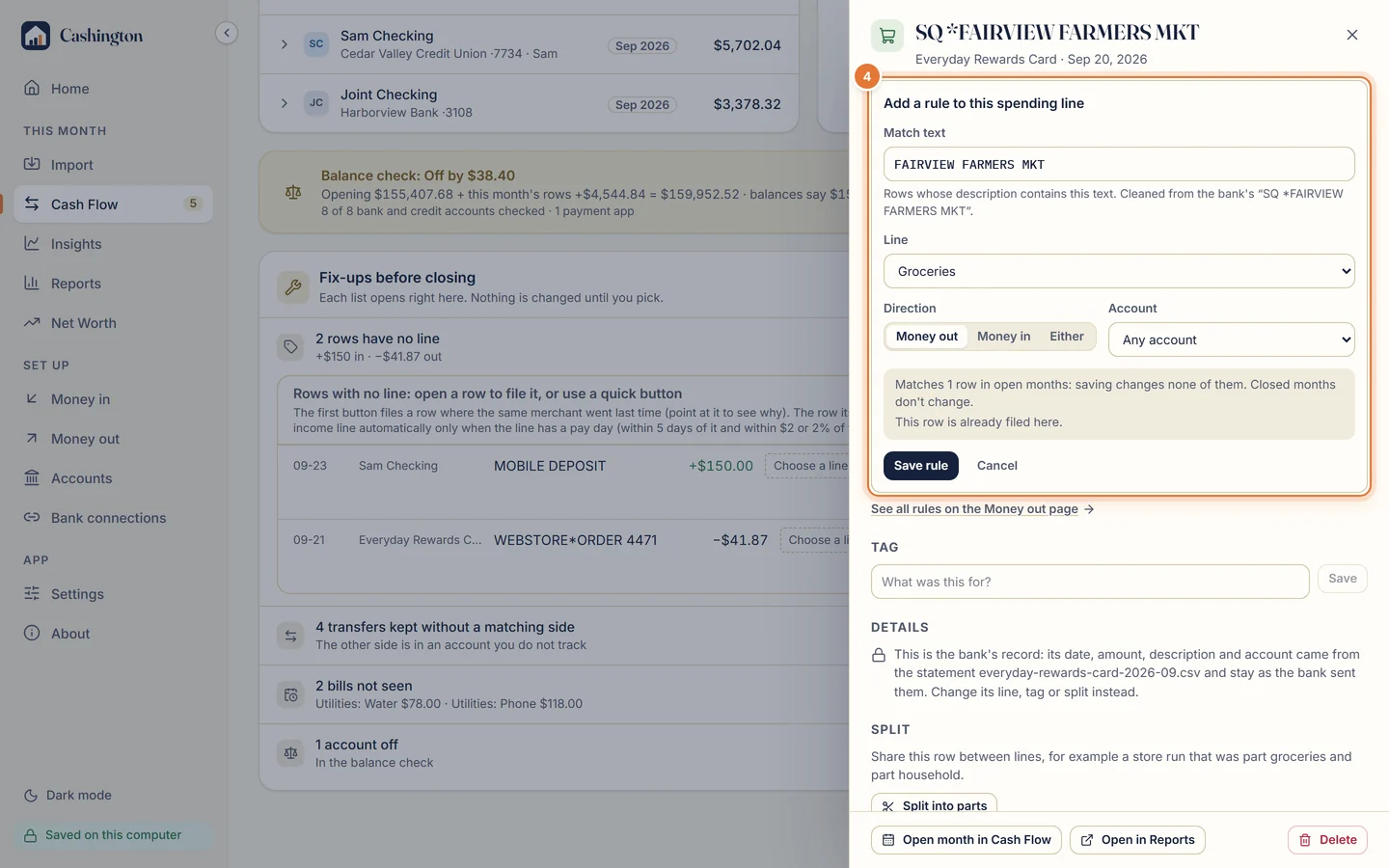
    Give each new row a line, such as Groceries, Eating out or Kids. Save a rule and the same merchant files itself next time. A rule never overwrites a line you picked by hand, and anything Cashington can't place waits in Needs a look instead of being guessed.

    Guide: file rows and save rules
    A row just filed under Groceries, with the offer to always file anything containing FAIRVIEW FARMERS there: Save rule or Just this once.
  3. Close

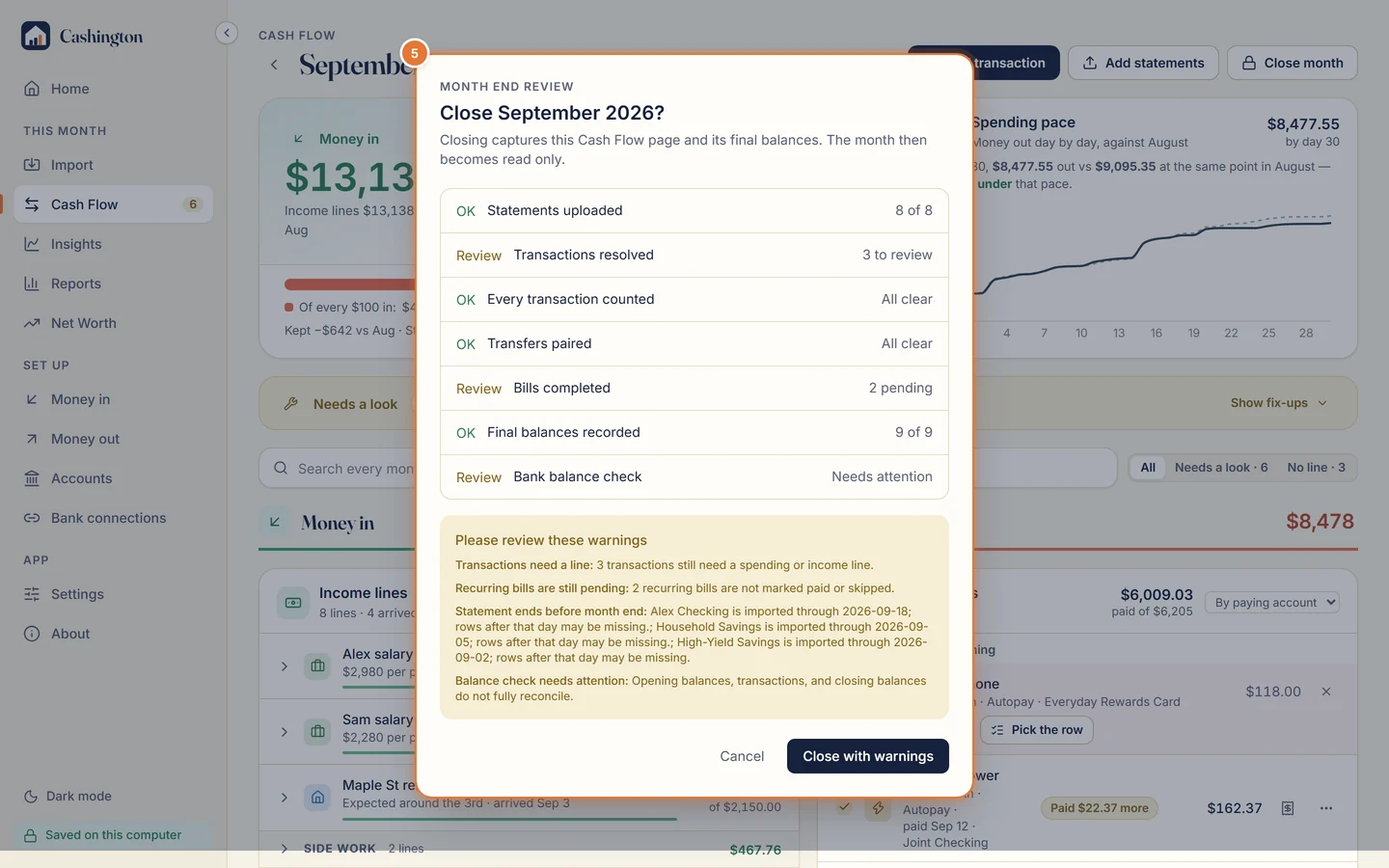
    The balance check adds the month's rows to each account's opening balance and compares the result with your statements. When everything is filed and counted, close the month. Closed months are read-only; if a late row turns up, reopen it.

    Guide: close a month
    Month end review for September 2026: statements uploaded, transactions resolved, transfers paired, bills completed and final balances recorded, with Close with warnings.
  4. See where it went

    Cash Flow shows the month as a T-account: money in on the left, money out on the right, and In − Out = Kept underneath. Insights draws the Money map from every paycheck to every bill and spending line, and any figure opens the rows behind it.

    Guide: read Insights and drill down

All eleven step-by-step guides

Inside the app

Everything a household ledger needs, and nothing it doesn't.

No credit score, no investment tickers, no chatbot. Just your accounts, your bills, your income and your spending, kept straight.

Cash Flow

The month, drawn the way an accountant would.

Money in on the left, money out on the right, and a footing line that has to add up. Income lines show their schedule, bills that need a look come first, and the rest fold away.

  • Income lines by schedule: $2,980 per payment · every two weeks · 2 of 2 arrived
  • Bills paid as expected fold into one line; paid more, paid less, not seen stay on top
  • Cash in and Cash out open as ledgers you can sort and download as CSV
  • Search by text or by amount: type 42.75 and find it
Income and Bill Calendar

Paydays and due dates on one page.

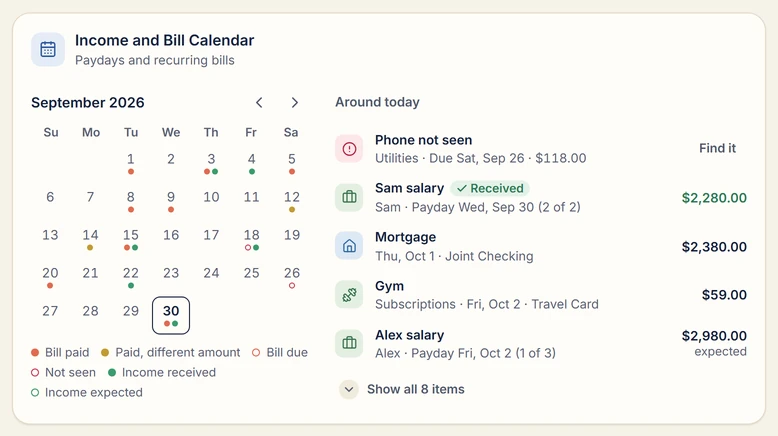
Home puts every expected payday next to every recurring bill. Pay can come monthly, twice a month, every two weeks or weekly, and some months get three paychecks, so the calendar counts them for you.

  • Income received, expected, or late when a payday passes with nothing in
  • Bills paid, due, paid a different amount, overdue or not seen
  • Click a day to see what lands on it; look ahead to next month too
The Income and Bill Calendar for September 2026: coral dots for bills and green dots for paydays, beside a list of what's due around today.

Insights

Follow every dollar to the rows behind it.

The Money map traces income through the household to what you kept, your recurring bills and your spending lines, over 1, 3, 12 or 24 months or all of it. Click any bar or line to see the exact rows behind it, and any row to open it.

  • Where the money comes from, and where it goes, month by month
  • Group spending: every group of lines, such as Utilities, with who gets the money
  • Figures that agree with Cash Flow for the same months
The Money map over 24 months: two salaries, rent and side work flow into the household, then out to Kept, Recurring bills and Spending lines, each with its total and share.

Net Worth

A real balance sheet for the household.

Group what you own, such as Real Estate or Vehicles, and link each loan to what it paid for. The home and its mortgage move together, and equity is worked out for each group. Your Cashington accounts join the sheet by themselves.

  • Assets, liabilities and equity, with each row's share of net worth
  • Dated values carry forward until you update them; history draws itself
  • Kept apart from cash flow: a new home value is never income

The transaction drawer

Every row knows where it came from.

Click any row, anywhere in the app, and the same drawer opens: the statement file it came from and the day you imported it, or Added by hand; its line, tag and status; the rule that filed it; and what it pays or brings in.

  • Split a store run between Groceries and Household; the parts must add up
  • Statement rows keep the bank's date, amount and description
  • Rows you added by hand can change all of them

Bank connections, optional

Your banks, through your own account.

Statements always work. If you'd rather not download them, connect your banks through your own SimpleFIN account, the easy option, or your own Plaid developer keys, marked Advanced. A refresh on Import brings in the new rows, filed like statement rows, and updates loans and investment accounts on Net Worth.

  • You sign in to your bank on SimpleFIN's or Plaid's own page; Cashington never sees your bank login
  • The app talks to your provider straight from your computer, never through a Cashington server
  • SimpleFIN charges $15 a year; Cashington charges nothing
Guide: connect your banks

Backups and moving computers

Copies you never have to remember.

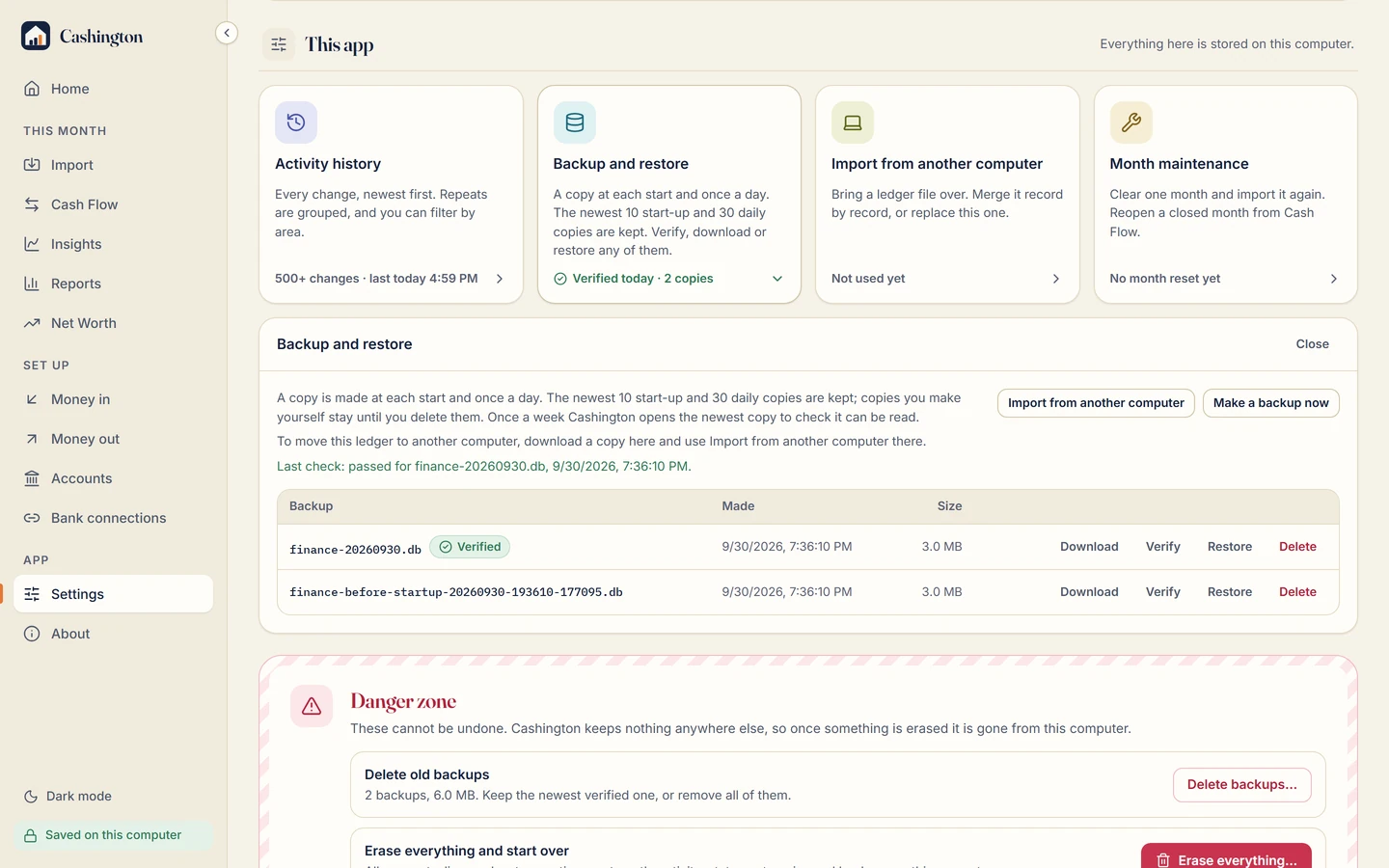
Cashington makes a copy at each start and once a day, verifies it, and keeps the newest 10 start-up and 30 daily copies. Download one for a USB drive, or restore any of them in a click.

  • New computer? Import from another computer compares the two ledgers side by side first
  • Merge record by record, choosing where they differ, or replace everything
  • A verified safety backup is made before either one
Backup and restore in Settings: Make a backup now, the last check passed, and a list of verified backups with Download, Verify and Restore.

Danger zone

When you want it gone, it's gone.

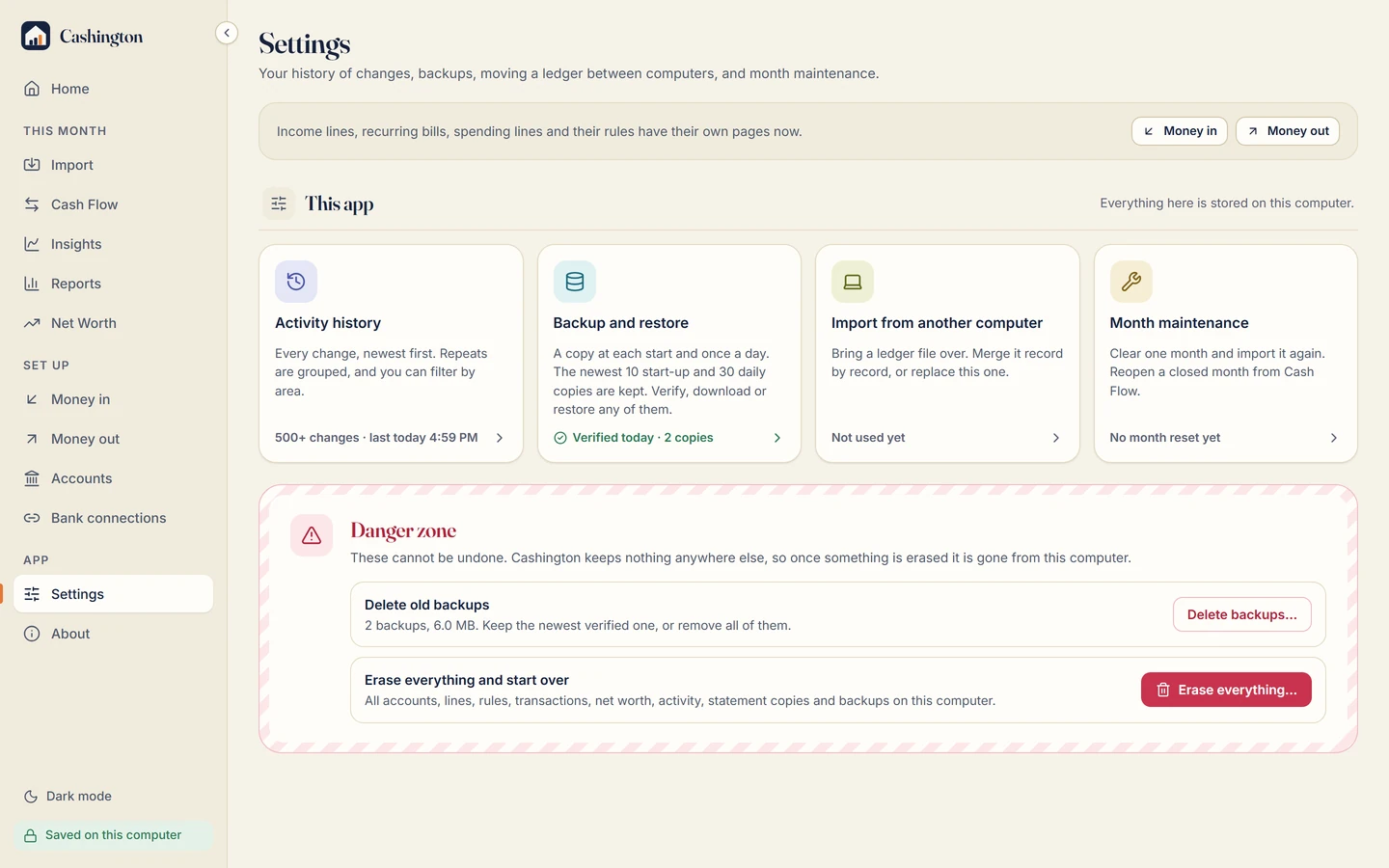
Delete old backups, or erase everything and start over in three steps: see exactly what will go, save a final copy wherever you choose, then type ERASE. Cashington keeps nothing anywhere else, so there's no account to close and no server copy to chase.

Settings, This app, and the Danger zone: Delete old backups, and Erase everything and start over, with the note that Cashington keeps nothing anywhere else.
  • Reports

    Search the whole history, pick the exact rows, and save the report, print a clean PDF or download CSV.

  • Payment apps

    Venmo, Cash App, PayPal and Apple Cash as accounts, with their funding checked against the bank withdrawals that paid for it.

  • Transfers stay transfers

    Paying a card from checking is not spending, so the same dollars are never counted twice.

  • Activity history

    Every change, newest first, grouped and filterable by area.

  • Dark mode

    The whole app in a calm dark theme, remembered on your computer.

  • Built for the keyboard

    The charts, the transaction drawer and the Net Worth sheet all work from the keyboard.

Privacy

Your ledger is a file on your computer. That's the whole design.

The app never talks to a Cashington server. It runs on your computer, reads the statements you give it, and keeps everything in your user profile's app data folder. Cashington never sees your bank login or your transactions. If you turn on a bank connection, your own Plaid or SimpleFIN account does.

What isn't done yet

On Windows, Cashington comes through the Microsoft Store, which checks and signs every release. On a Mac it is signed with an Apple Developer ID and checked by Apple. An independent security review is planned.

Cashington doesn't encrypt the ledger file itself today. Your computer's disk encryption (BitLocker on Windows, FileVault on Mac) protects it along with the rest of your disk; how the public release handles this will be stated here before launch.

  • Local file

    One ledger in your user profile's app data folder, with its backups beside it. Standard SQLite, so it isn't locked to Cashington.

  • No account

    Nothing to sign up for and no password to create. Install it and start.

  • No cloud

    No sync service, no analytics, no telemetry. The app's window is blocked from reaching the internet, and a fresh install contacts no one until you set up a bank connection.

  • Works offline

    Everything you do, from import to close, happens on your machine, with or without the internet. Only a bank refresh needs it.

Pricing

Buy it once. Keep it.

Cashington is planned as a one-time purchase, with no subscription for the app and no feature that switches off when a plan ends.

If online extras ever arrive, such as sync between computers, they'll be optional and priced on their own. The app you bought keeps everything it had.

Planned for launch

One-time price, announced at launch

No subscription · household license for 3 computers

  • The whole app: every feature on this page
  • One household license for up to 3 computers
  • A full 30-day trial before you pay
  • Your copy keeps working, whatever you buy later or don't
Join the waitlist

Plans, not an offer: Cashington isn't on sale yet, and no payment is taken on this site.

Founding price

$59 once

Founding price $39 for the first 100 households · no subscription · household license for 3 computers

  • The whole app: every feature on this page
  • One household license for up to 3 computers
  • A full 30-day trial before you pay
  • Your copy keeps working, whatever you buy later or don't
Join the waitlist

Planned prices in US dollars, not an offer: Cashington isn't on sale yet, and no payment is taken on this site.

Fair warning

Cashington is not for you if…

Better to hear it now than after a trial.

  • You want one-click bank sync.

    Bank connections are optional and run through your own SimpleFIN account or your own Plaid developer keys, which you set up yourself. Without one, Cashington reads the CSV statements you download, with a review step before anything is saved.

  • You want a phone app.

    There isn't one yet. iOS and Android companions are planned after sync between devices, with no date.

  • Two of you edit on two computers at once.

    One ledger lives on one computer. You can merge a copy from another computer now and then, but it isn't live sync.

Reviews

Real reviews, published as written.

The Windows and Mac downloads don't come from a store, so reviews are left here, on the site. Every one is read before it appears and shown with its date and the name its writer gave, if any. Reviews are held back only for spam, abuse or personal details; critical ones are published too.

No reviews yet. Cashington isn't out yet. If you've used it, yours could be the first.

Store reviews will be linked here too once Cashington has listings in the Microsoft Store, the App Store or Google Play.

Questions

Straight answers.

Can I download Cashington now?

Not yet. It's coming soon to the Microsoft Store for Windows, and as a signed download for Mac (Apple Silicon). Join the waitlist to hear the day it's available.

Does it connect to my bank?

If you want it to. A bank connection is optional and runs through your own SimpleFIN account (the easy option) or your own Plaid developer keys (marked Advanced), never through Cashington. You sign in to your bank on SimpleFIN's or Plaid's own page, so Cashington never sees your bank login. SimpleFIN charges $15 a year; Cashington charges nothing. Without a connection, you download CSV statements from your bank's or card's website and import them, with a review step before anything is saved. The Connect your banks guide shows every step.

Which banks' statements can it read?

It has built-in readers for CSV files from Chase, American Express, Bank of America, Citi, Discover, Wells Fargo, Barclays and Venmo, plus a general reader for most other bank CSVs with a date, a description and an amount (or debit and credit) column. A file it can't read is refused with a message rather than guessed at.

Where is my data stored?

In a single ledger file in your user profile's app data folder, with its backups beside it. The ledger is never sent anywhere; a bank connection, if you set one up, only fetches from your own SimpleFIN or Plaid account. The file is standard SQLite, so it isn't locked to Cashington.

Is the ledger encrypted?

Cashington doesn't encrypt the ledger file itself today. Turn on your computer's disk encryption (BitLocker on Windows, FileVault on Mac) and it protects the ledger along with everything else on your disk. How the public release handles this will be stated here before launch.

Can two of us use it?

On one computer, yes: it's one household ledger. If you each keep a copy on your own computer, Import from another computer merges the other file record by record and asks you where they differ. It isn't live sync, so don't edit on two computers at the same time and expect them to match.

Can I bring my history from Quicken, Monarch or YNAB?

Not directly yet. You can import your banks' CSV statements going back as far as your bank lets you download them.

What if I stop using it?

Your data stays yours. Reports and the monthly Cash in and Cash out ledgers download as CSV, reports print to PDF, and the ledger itself is a file you can copy. When you want it gone, Erase everything removes it from your computer.

Which computers and phones will it run on?

Windows, and Mac with Apple Silicon (M1 or later; there is no Intel Mac build yet). iOS and Android companions are planned, after sync between devices, with no dates yet.

Why is it called Cashington?

Washington is where a country decides what to do with its money, and his face is on the dollar in your wallet. Cashington is the same idea for a household: one place where the money gets decided, once a month. It's the sibling of Eisenhour, a planner named after the Eisenhower method.

Didn't find your answer? Ask on the feedback board, or report a problem. One person reads every post and answers there.

Be first to know.

Leave your email and we'll write once, when Cashington is ready to download. No newsletter, no sharing your address.

Your address is kept only for that one email. To stop spam, the site keeps a scrambled (hashed) form of your internet address for up to a day, never the address itself. No cookies, no tracking.

Who made this

Built by a professor who ran his household on it.

Cashington is made by Pedram Jahangiry, a CFA charterholder who teaches machine learning and finance and spent years running his own household’s money on exactly this system as a private tool. This is that tool, turned into the app it deserved to be.