Cashington
Guides Start here
Get started
What you'll do
A new Cashington ledger starts empty: no sample data and no accounts, only a handful of generic spending lines. Home shows a five-step checklist, Set up your ledger. In this guide you add your first account; the next three guides cover the steps after it.
Updated October 2026 · Cashington 0.2.3 · 5 steps · screenshots show an invented household
-
Open Cashington
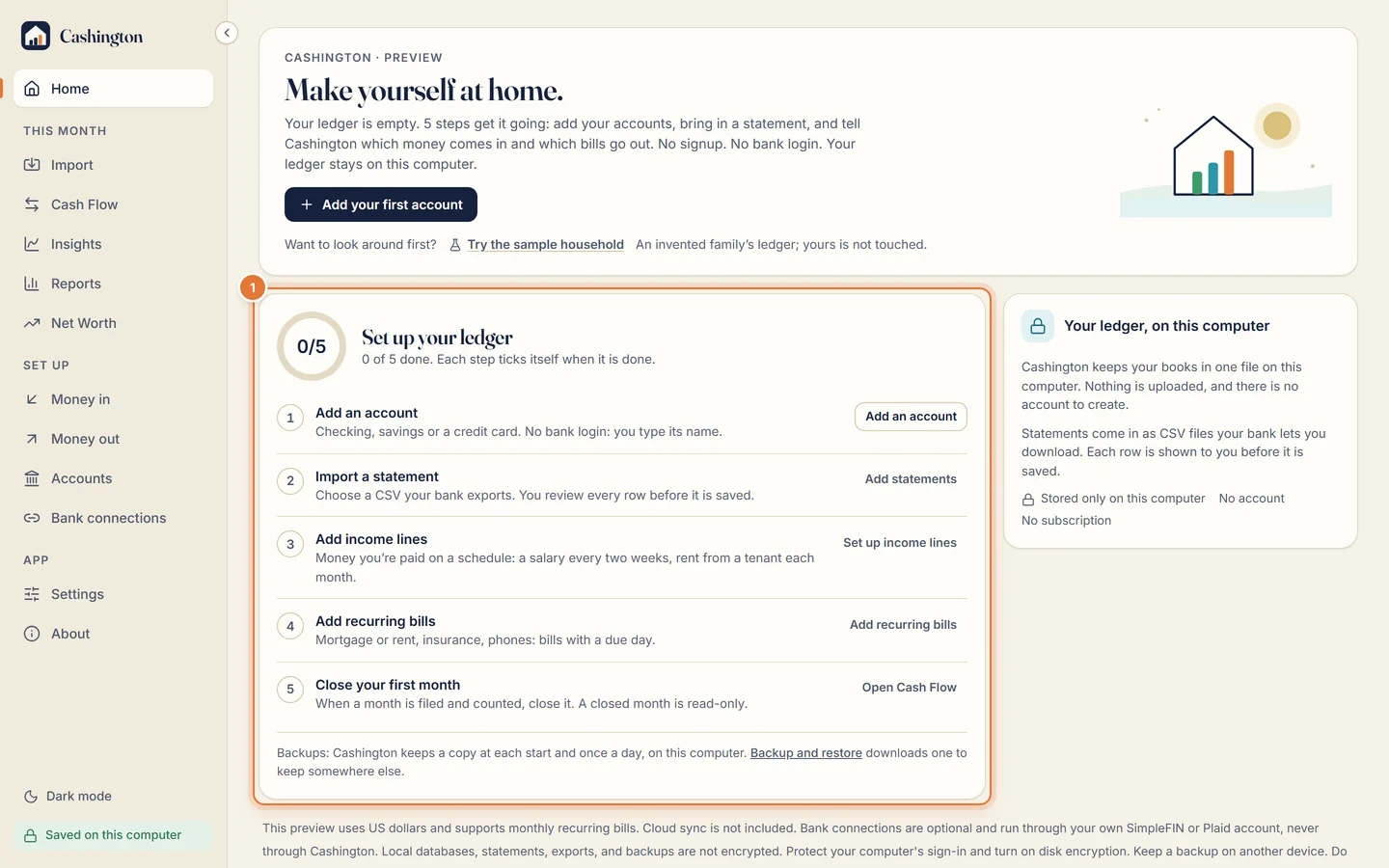
On a new install, Home shows Set up your ledger with five steps: add an account, import a statement, add income lines, add recurring bills and close your first month.
-
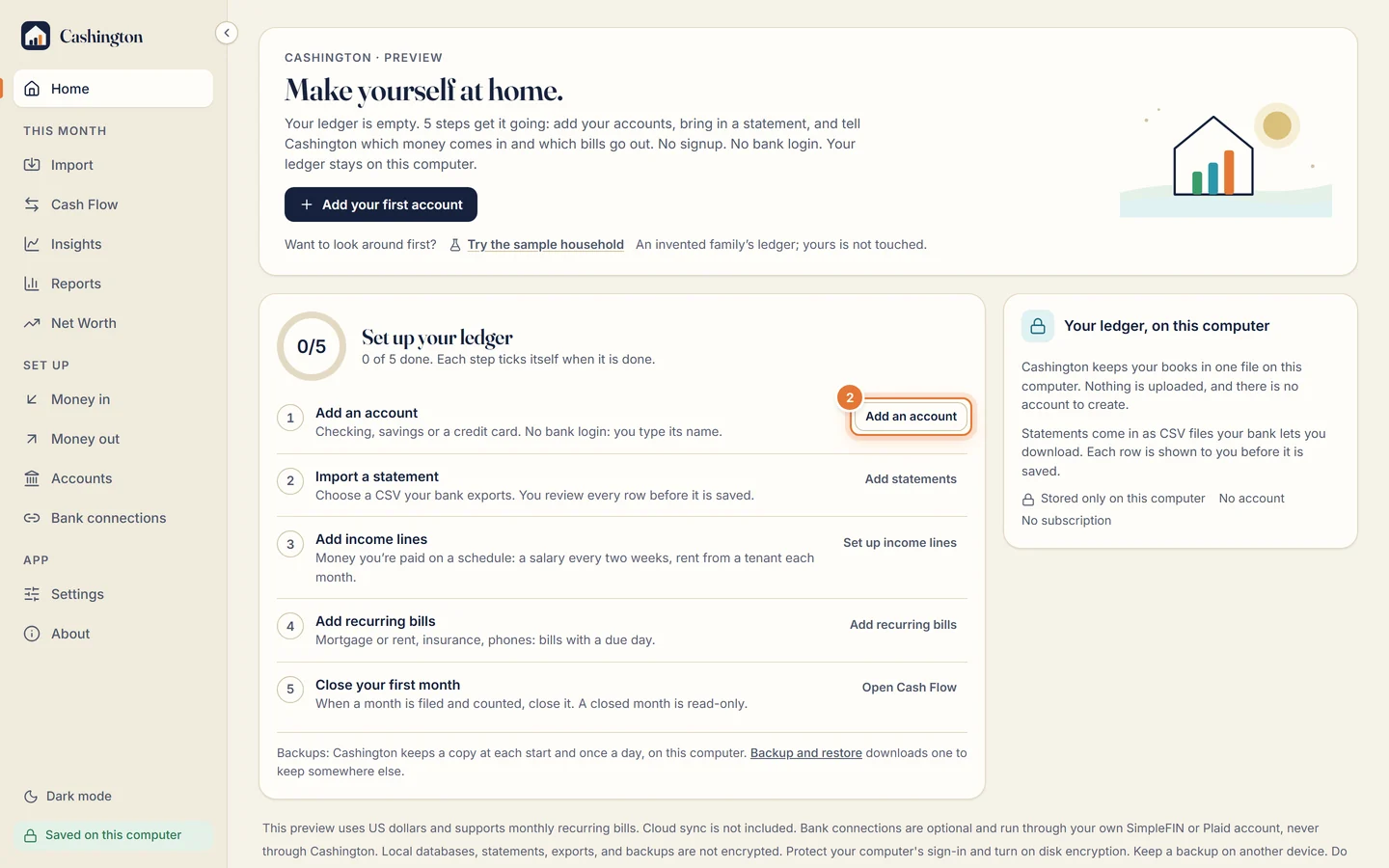
Click Add an account
It's the first step of the checklist. An account here is a record in your ledger, not a bank login: you type its name.
-
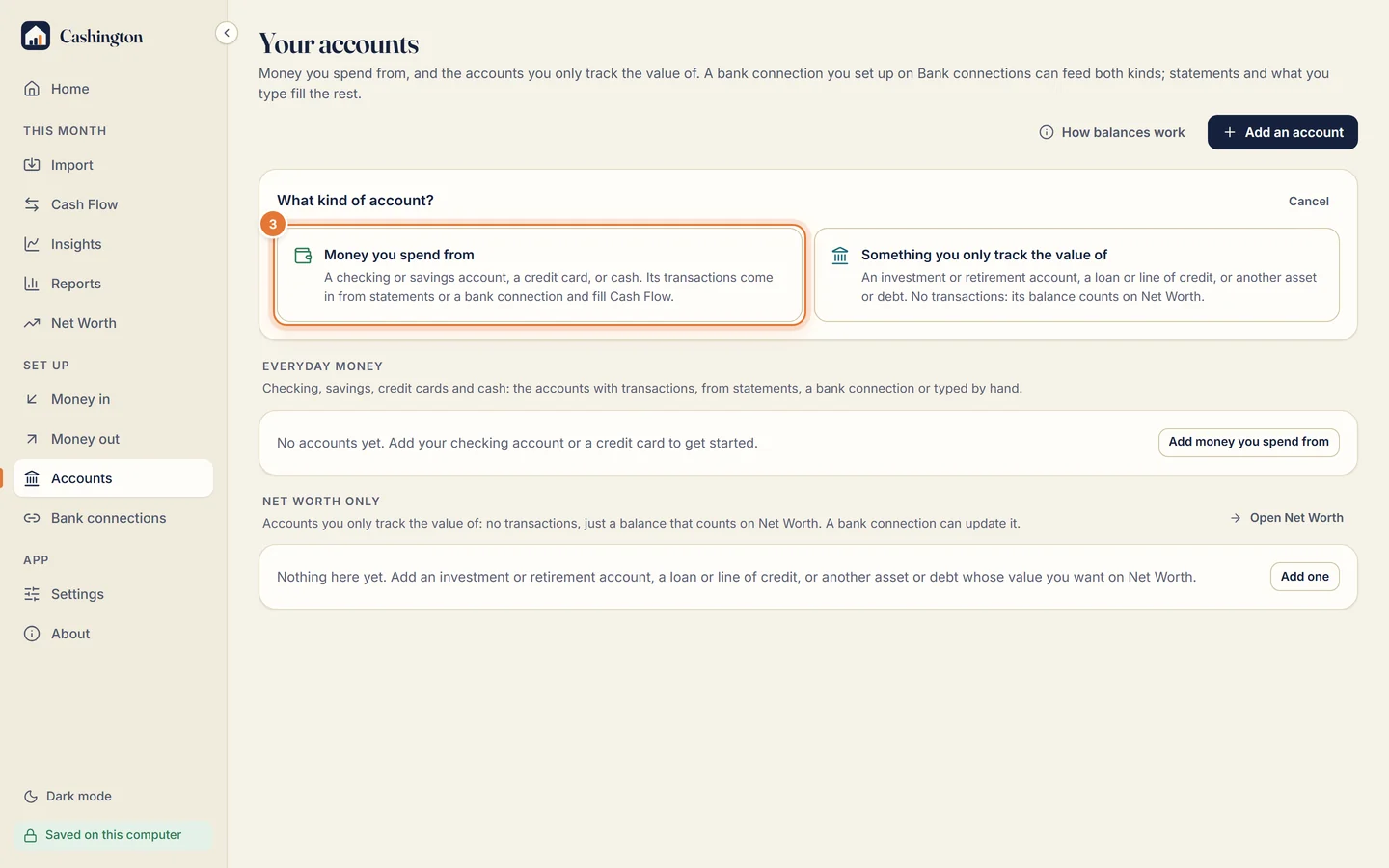
Choose the kind of account
Accounts asks what kind it is. Click Money you spend from for checking, savings, a credit card or cash; its rows come from statements, a bank connection or what you type. Something you only track the value of is for an investment or retirement account, a loan or another asset or debt: it has no transactions, its balance counts on Net Worth, and a bank connection can update it.
-
Describe the account
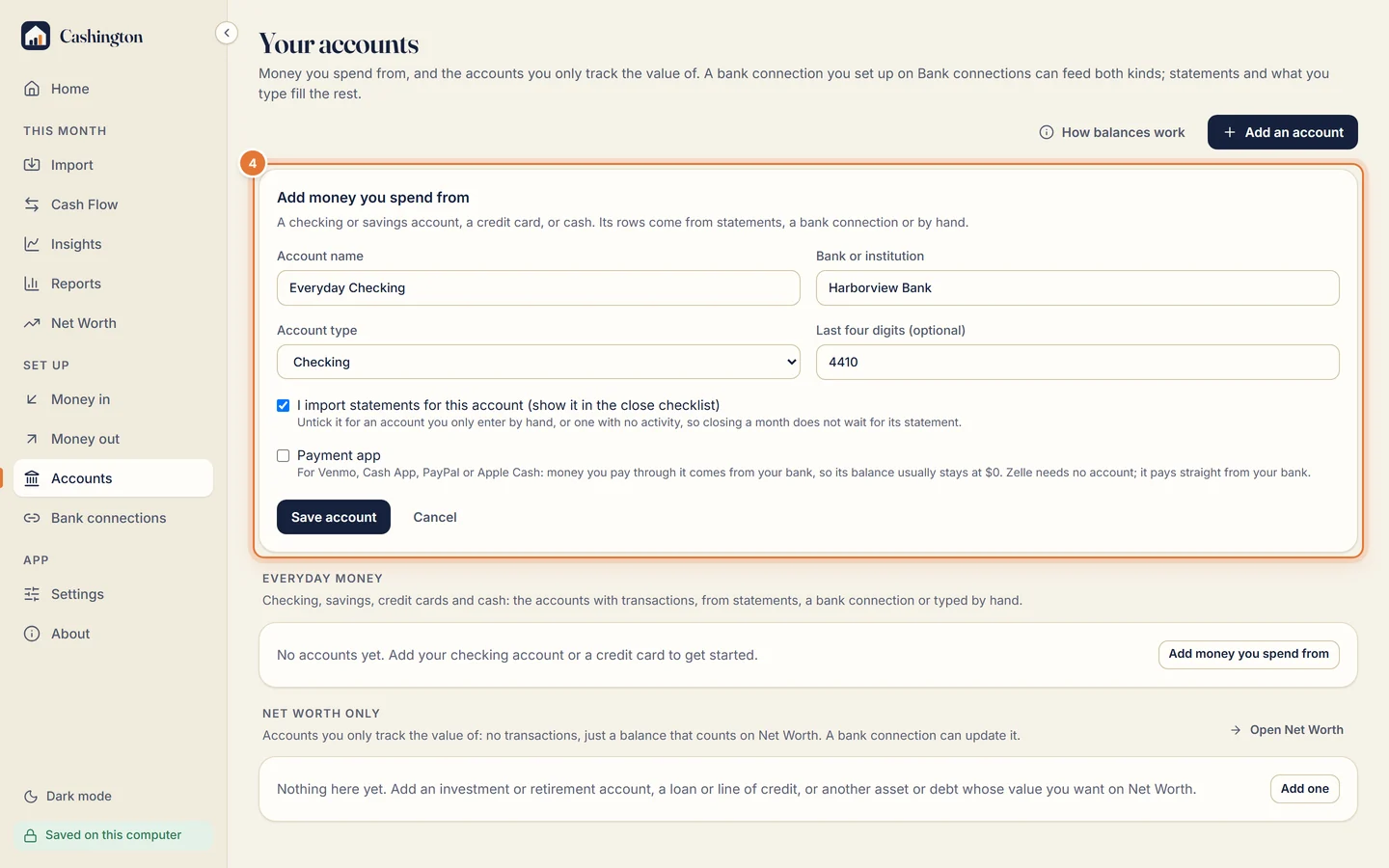
Type the account name, the bank and the account type (checking, savings, credit card or cash). The last four digits are optional, but they help Cashington match a statement file to the right account. Leave I import statements for this account ticked if you'll bring in its statements, then click Save account.
-
Carry on down the list
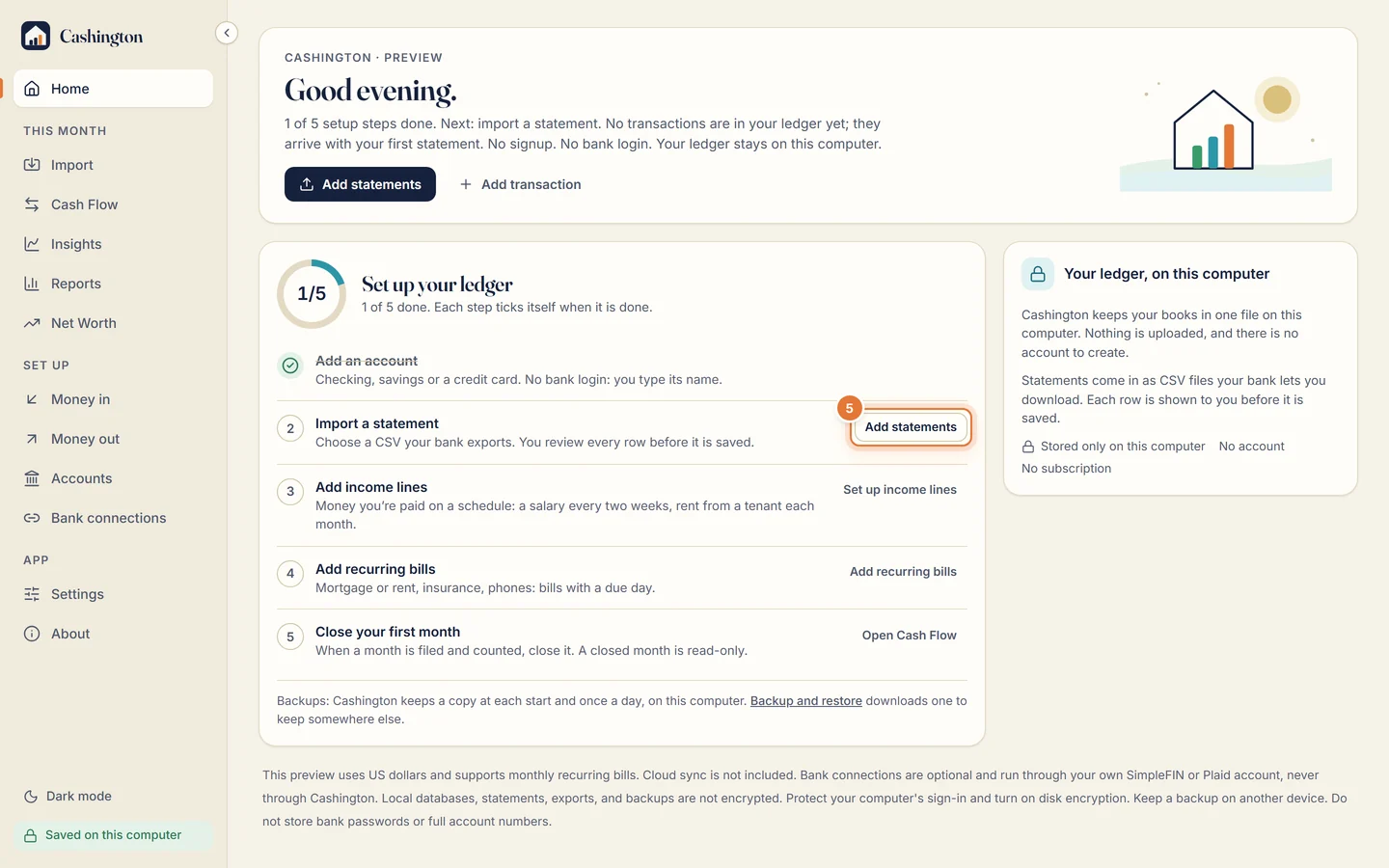
Back on Home, the first step is ticked: 1 of 5 done. Next is Add statements, then income lines and recurring bills, then your first month close.