Cashington
Guides Now and then
Back up, restore and move to a new computer
What you'll do
Cashington backs up your ledger by itself: a copy at each start and once a day, each one verified. You can make an extra copy before a big change, download one to keep elsewhere, restore any of them, or bring a ledger over from another computer.
Updated October 2026 · Cashington 0.2.3 · 8 steps · screenshots show an invented household
-
Open Backup and restore
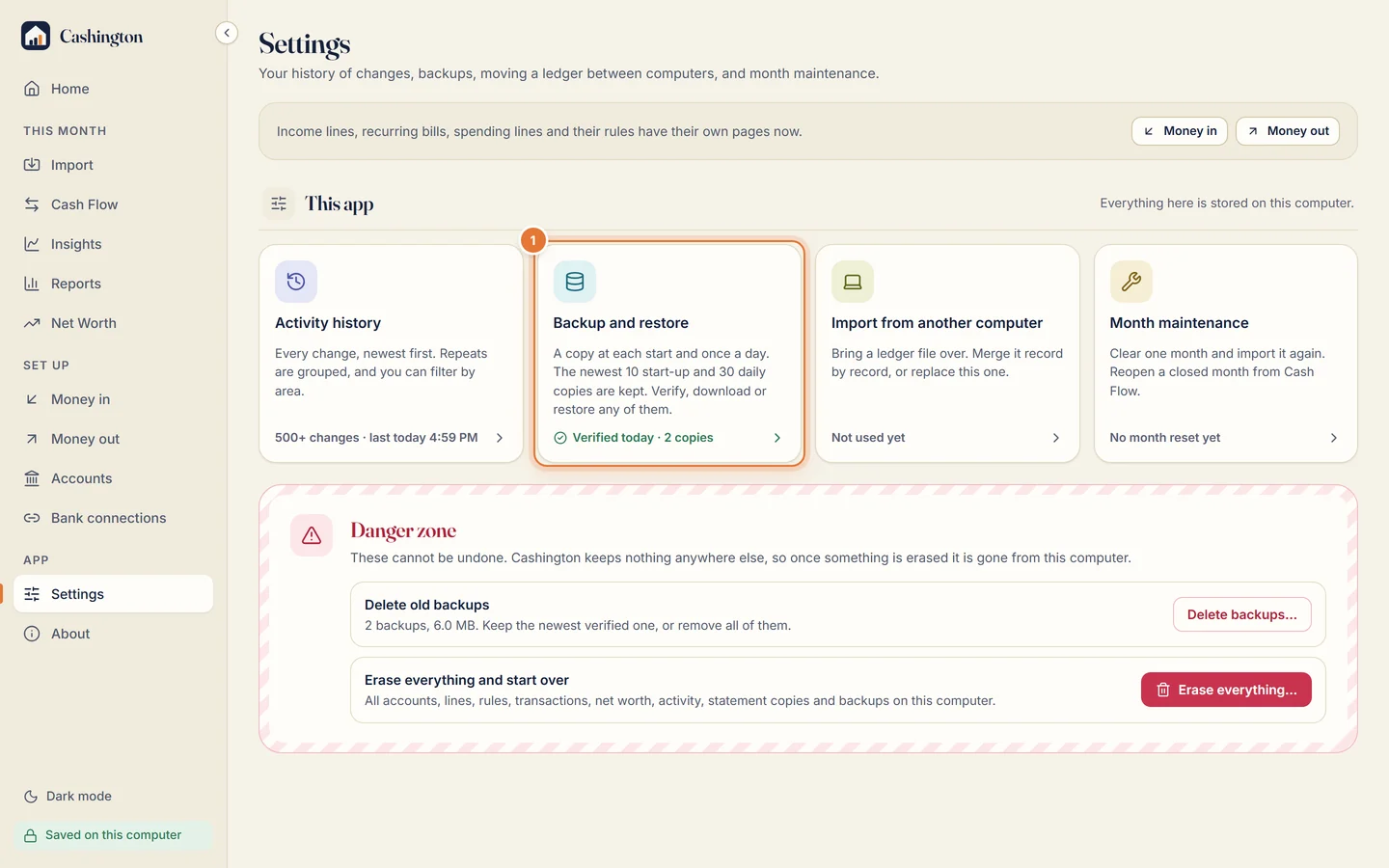
Open Settings, under App in the menu. Under This app, click Backup and restore.
-
Make a backup now
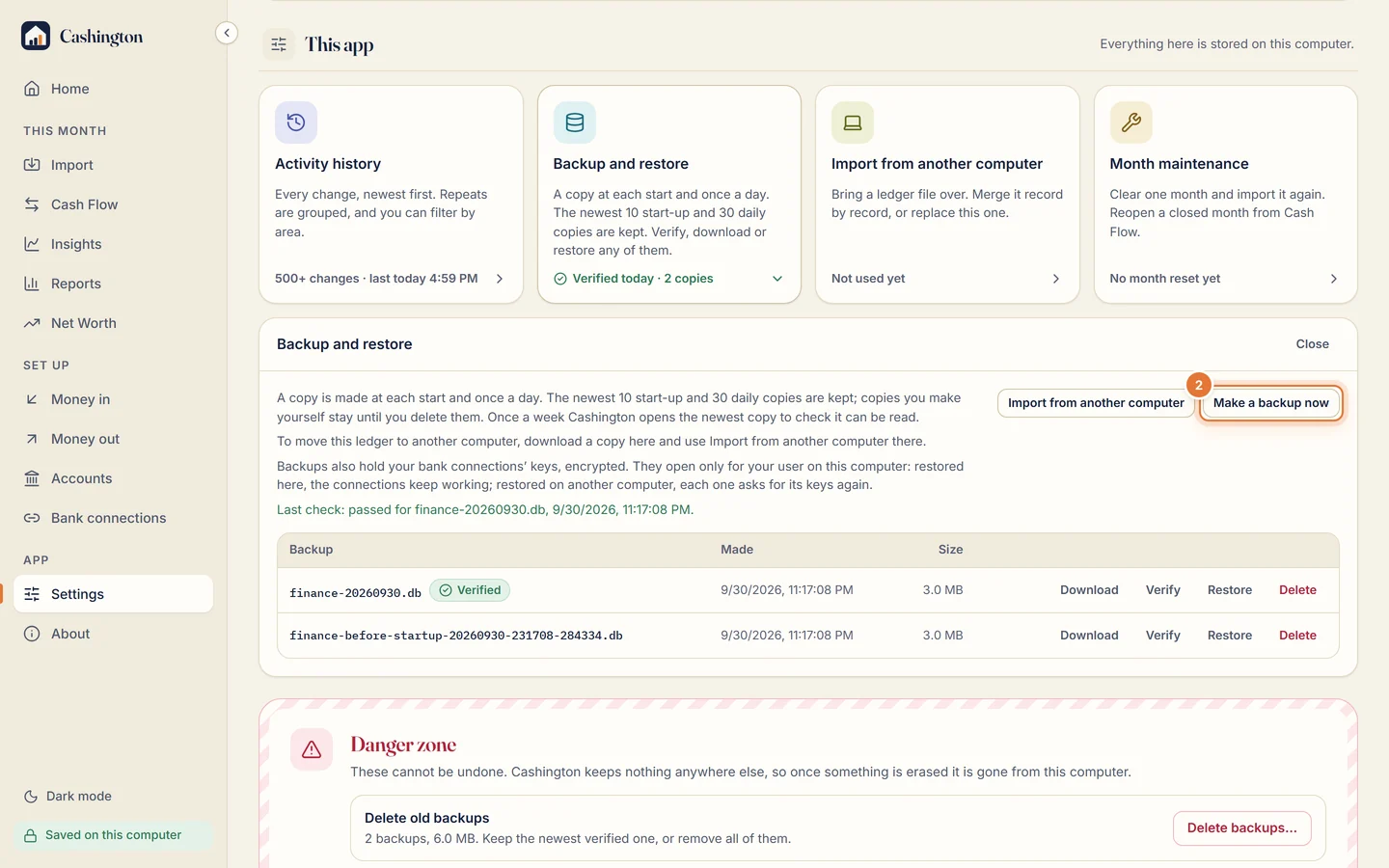
Cashington keeps the newest 10 start-up copies and 30 daily ones. Click Make a backup now for an extra copy before a big change.
-
Verify, restore or download
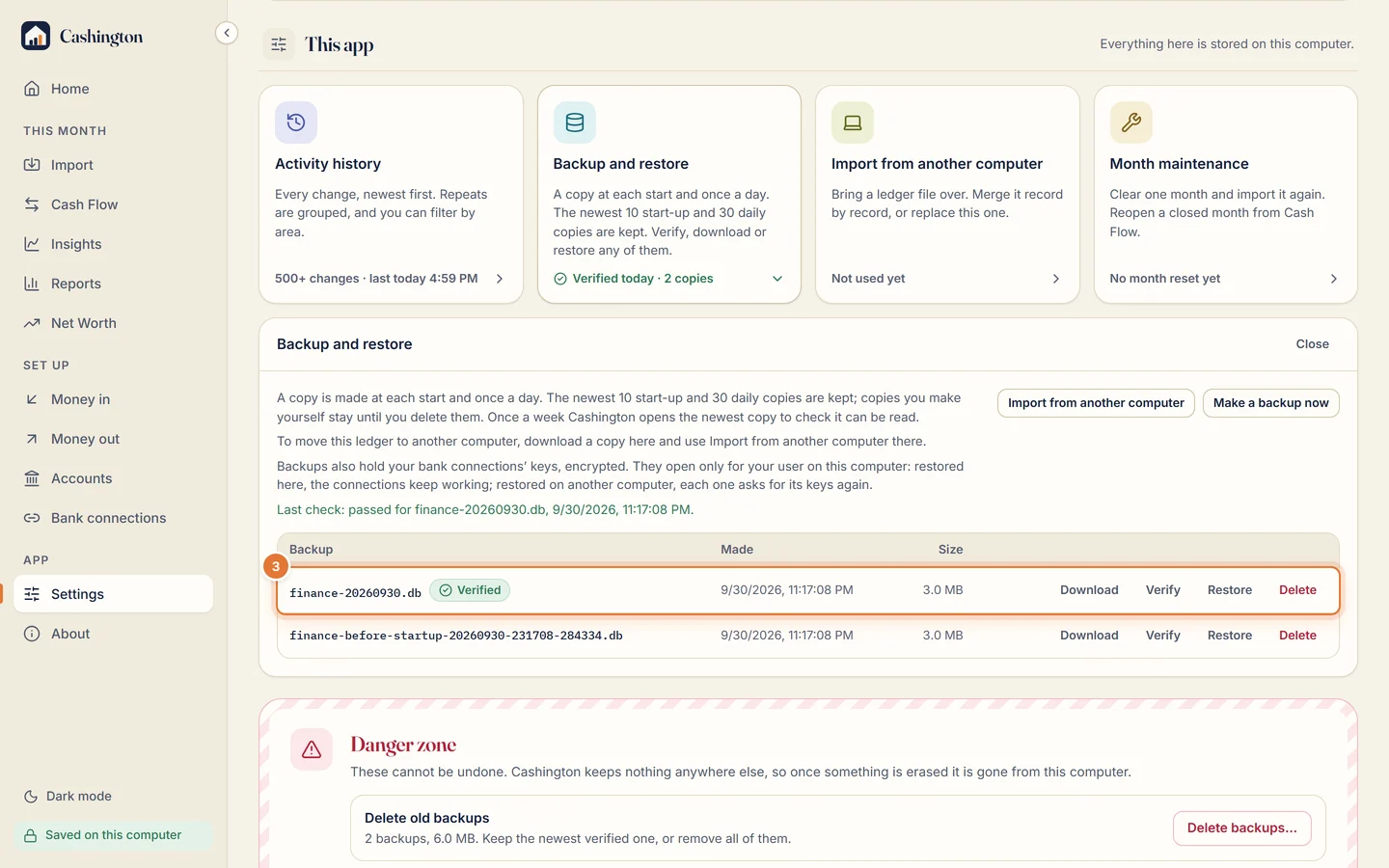
Each copy can be verified, restored or downloaded. Download one to keep on a USB drive or another computer.
-
Bring in a ledger from another computer
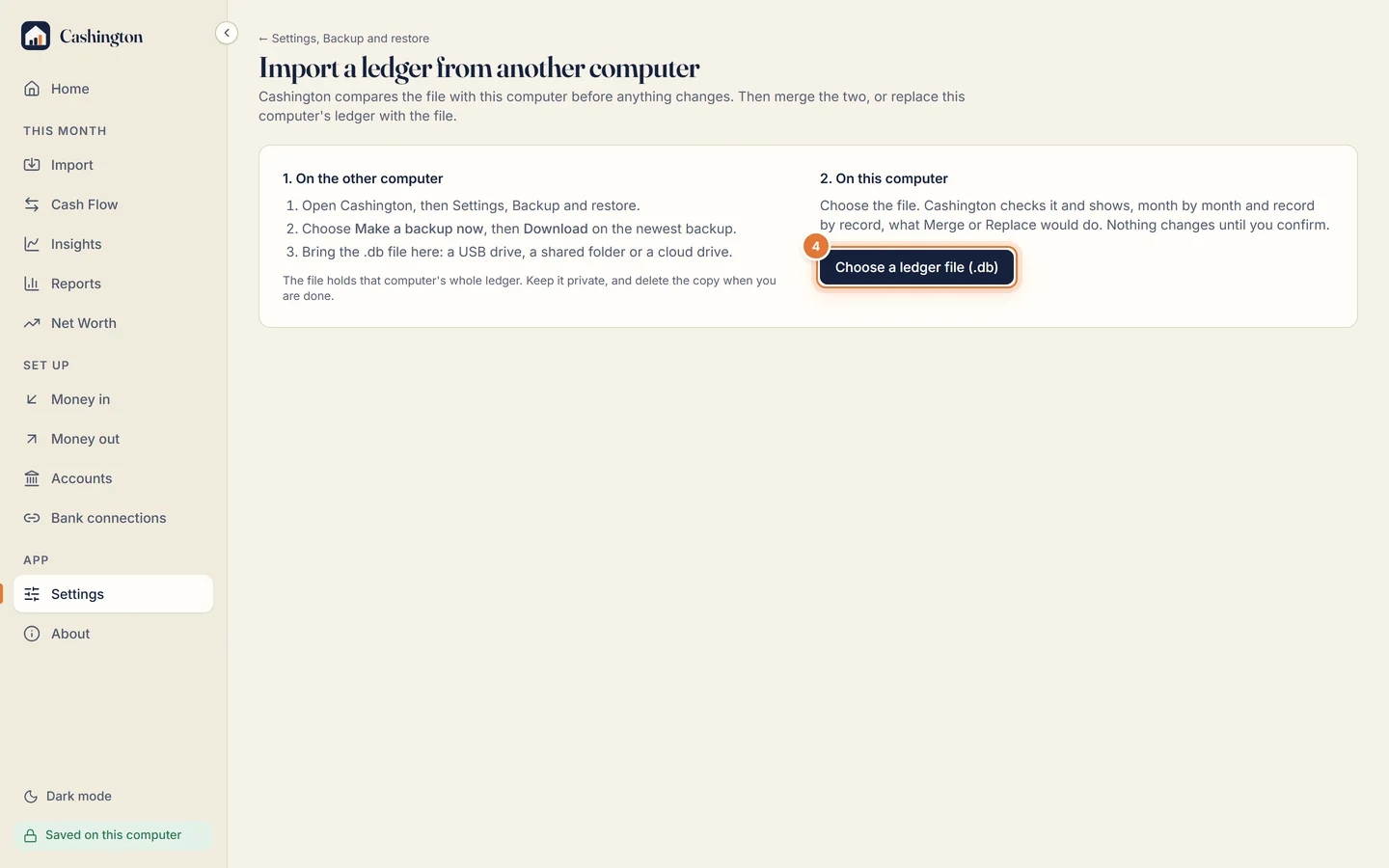
To move to a new computer or combine two, make and download a backup on the other computer. Then, on this one, open Import from another computer (in Settings, or the button in Backup and restore) and choose that .db file.
-
Compare before anything changes
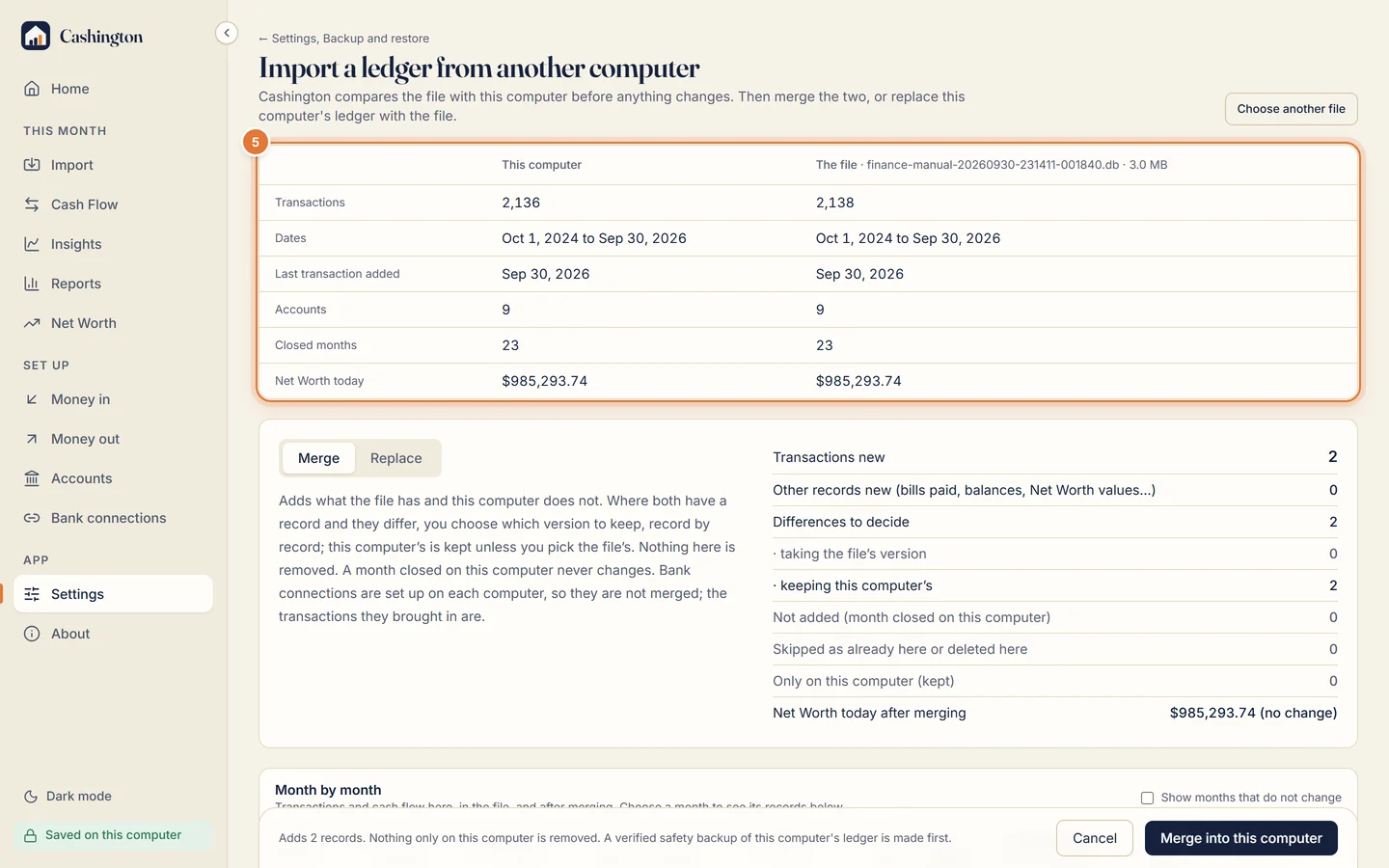
Nothing changes yet. Cashington compares the file with this computer side by side: transactions, dates, accounts, closed months and net worth.
-
Merge
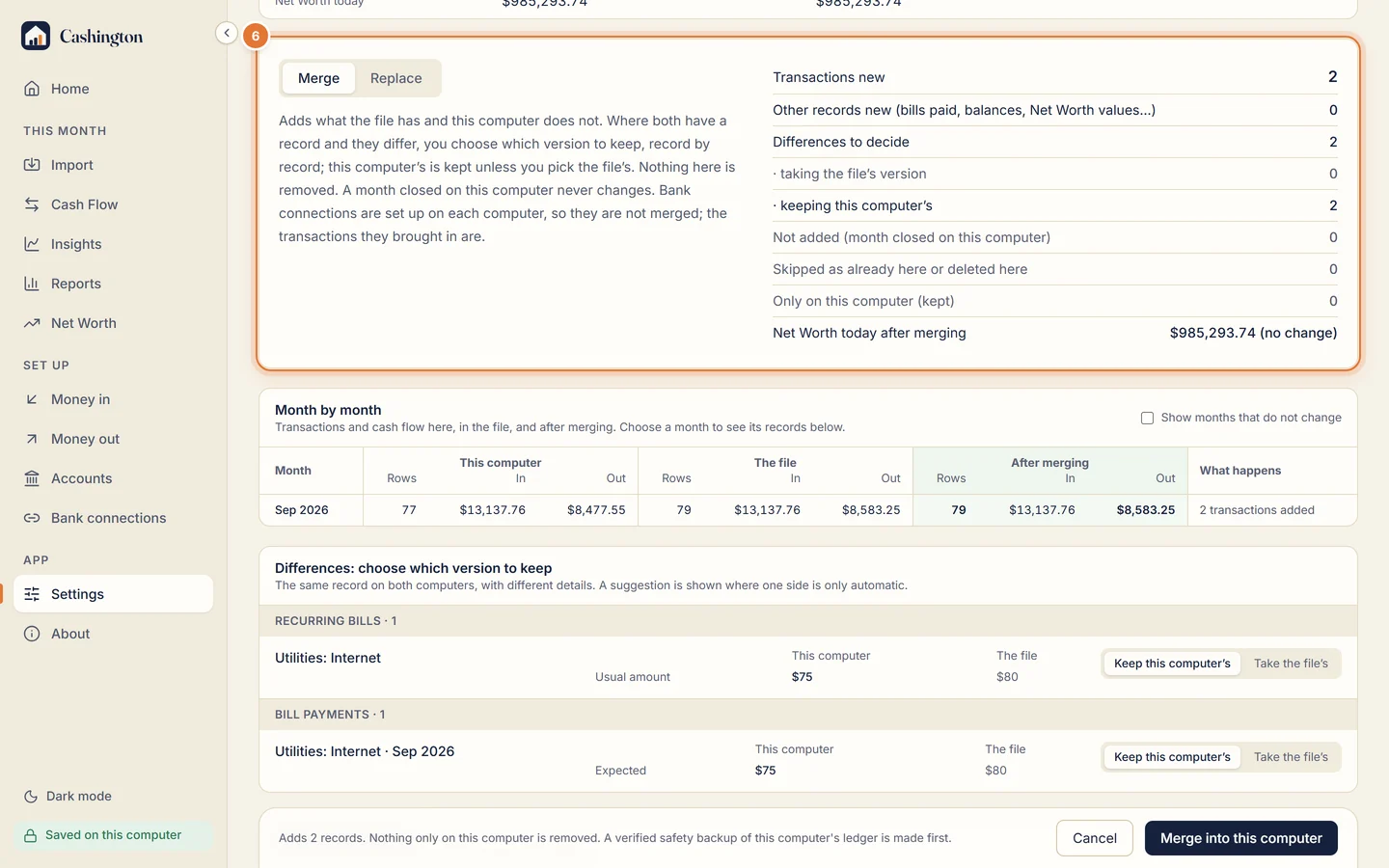
Merge adds what only the file has and keeps everything here. Where both have a record and they differ, you choose. The counts show exactly what would happen.
-
Decide the differences
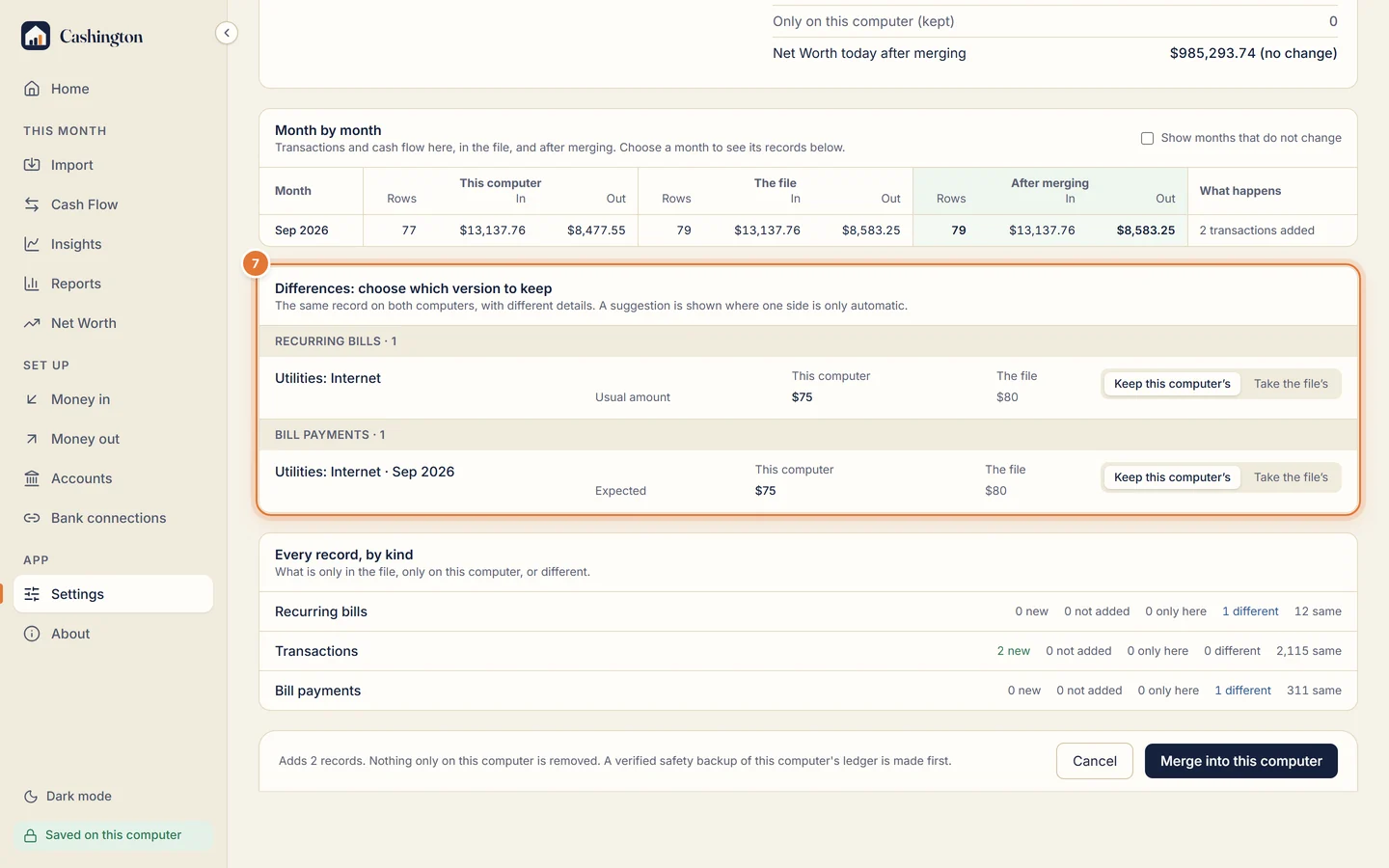
Under Differences, pick Keep this computer's or Take the file's for each record, then click Merge into this computer. A verified safety backup is made first.
-
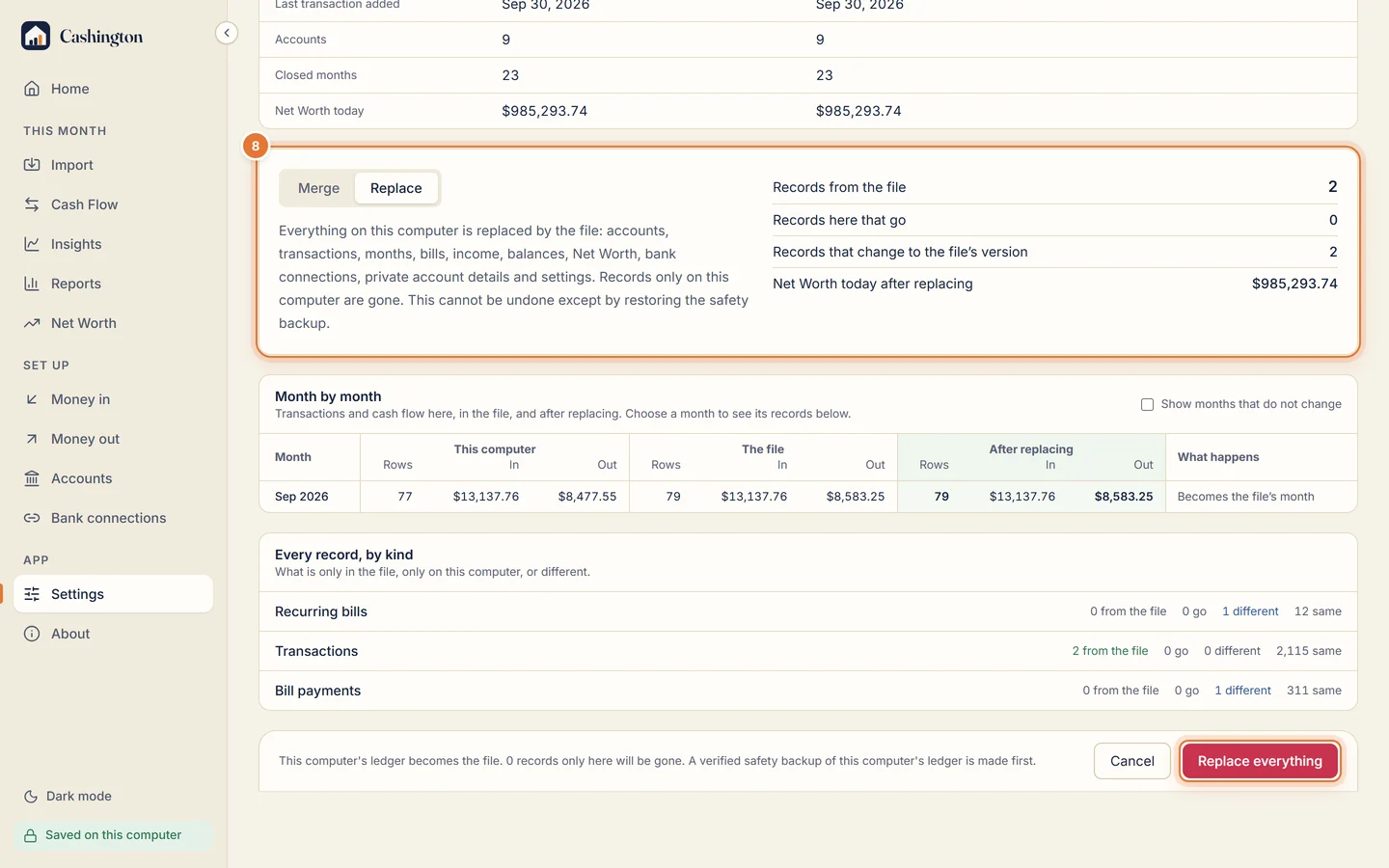
Or replace
Replace makes this computer's ledger an exact copy of the file, which suits a brand-new computer. Records only here would be gone, so it asks again before Replace everything.