Cashington
Guides Every month
Add, edit and split a transaction
What you'll do
Not everything arrives on a statement. Add a cash purchase by hand, open any row in the transaction drawer to see where it came from, and split a store run that was part groceries and part garden.
Updated October 2026 · Cashington 0.2.3 · 7 steps · screenshots show an invented household
-
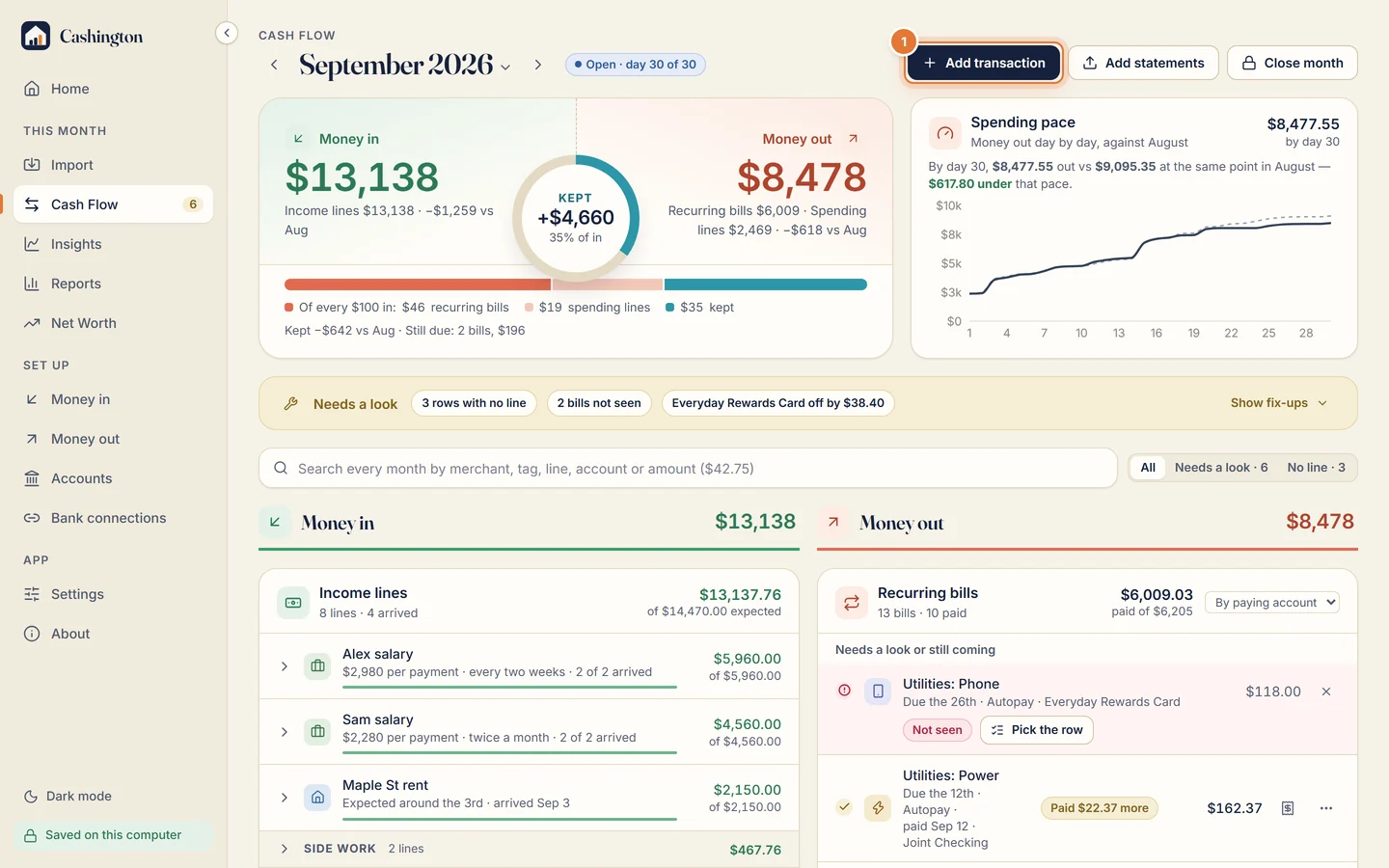
Click Add transaction
On Cash Flow, click Add transaction to add a row by hand, such as a cash purchase.
-
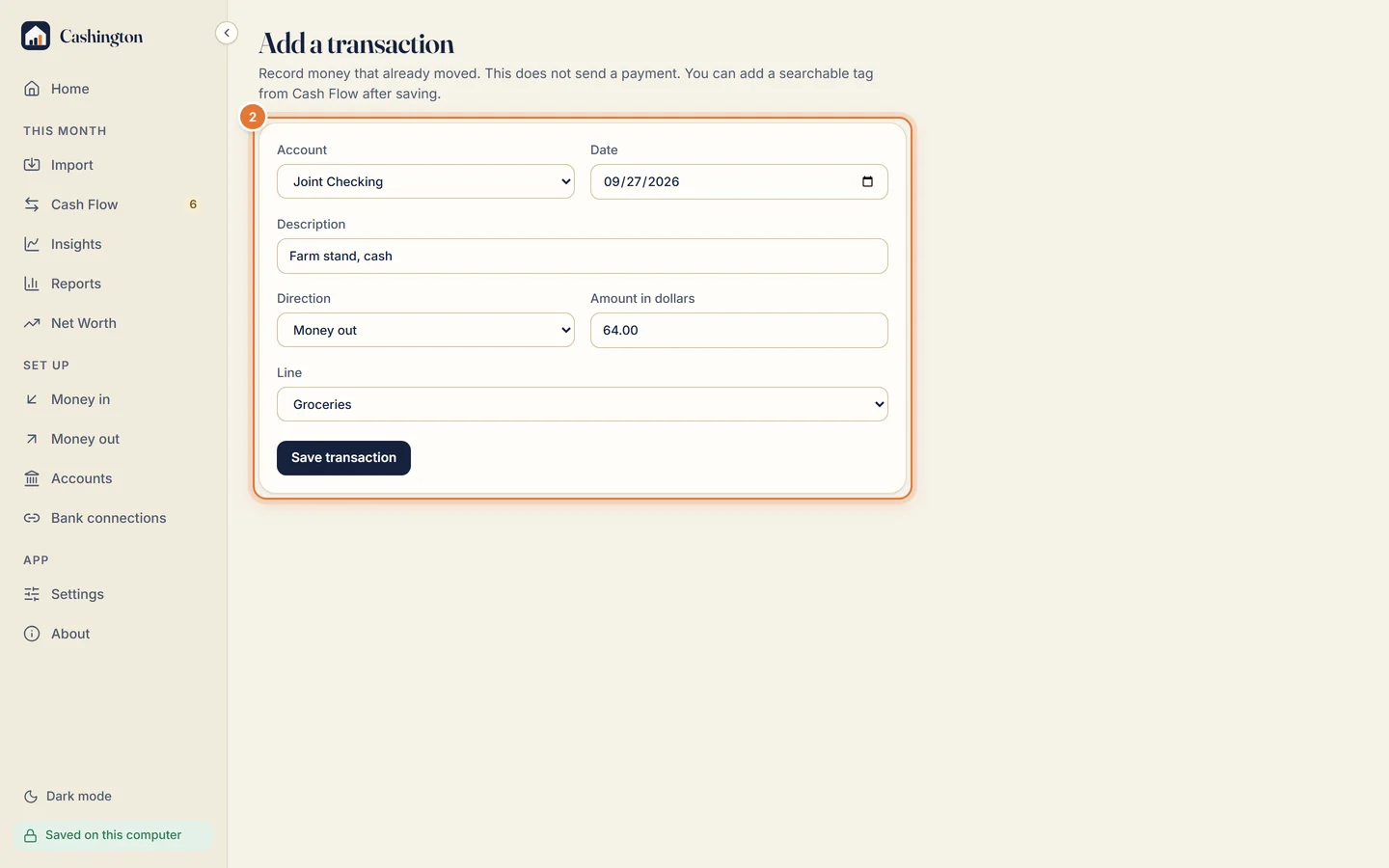
Fill it in
Pick the account, the date, a description, the direction (money in or money out), the amount and the line, then click Save transaction.
-
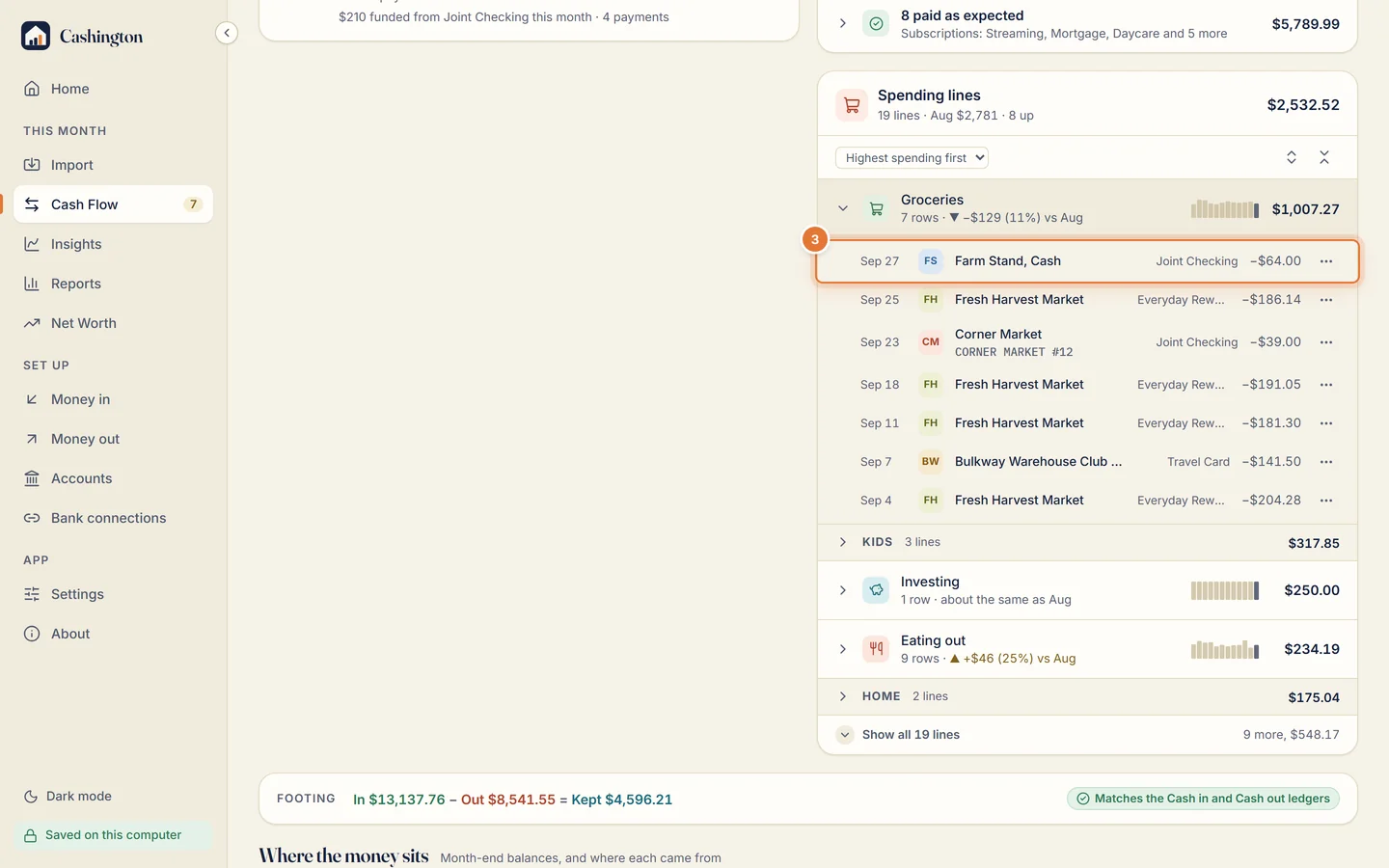
Open the row
Open the line the row is filed under and click the row. It opens in the transaction drawer.
-
See where it came from
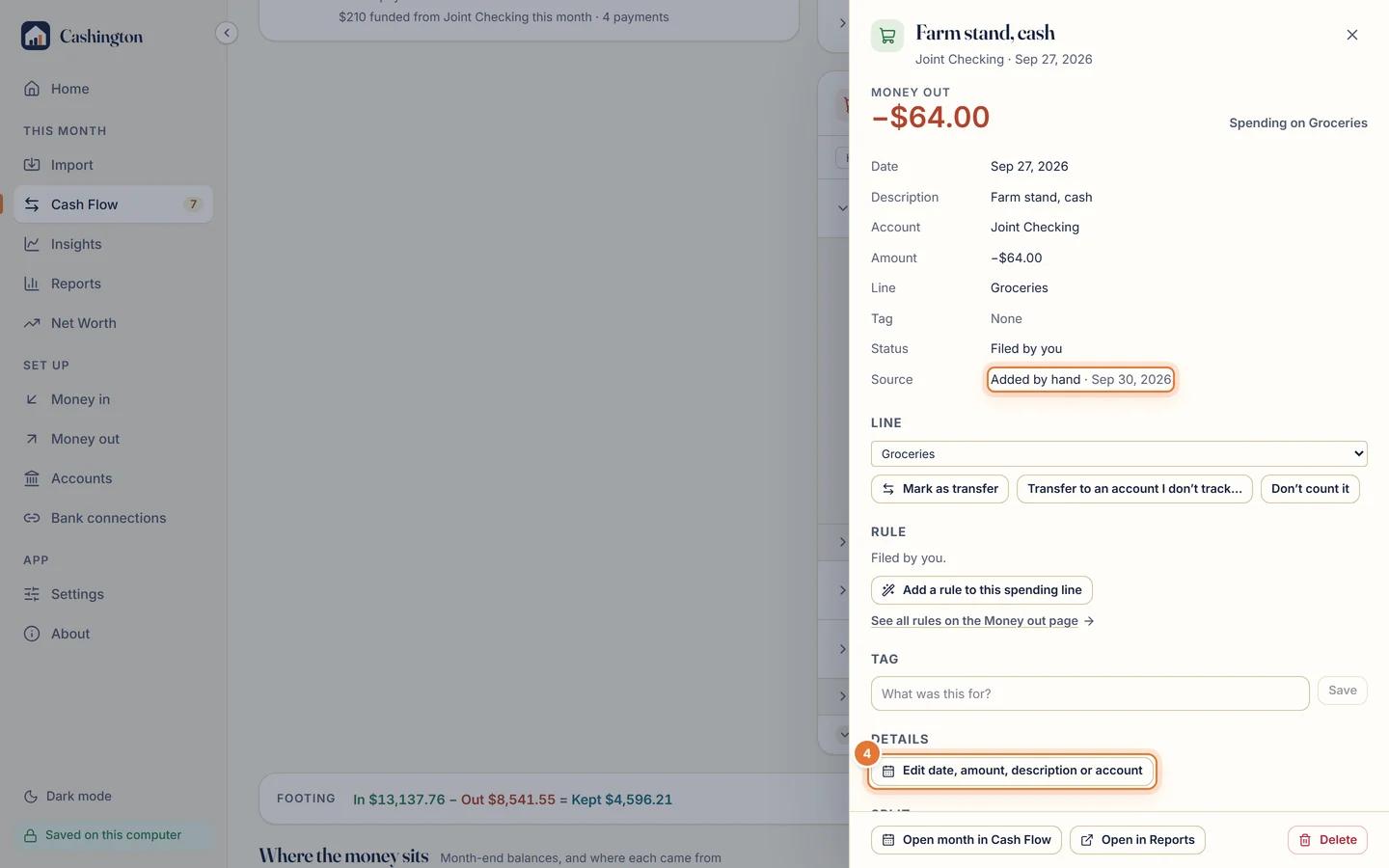
The drawer shows the row's source, here Added by hand; a statement row names its file and the day you imported it. Below are its line with the quick buttons, its rule and its tag. Click Edit date, amount, description or account.
-
Edit a row you added
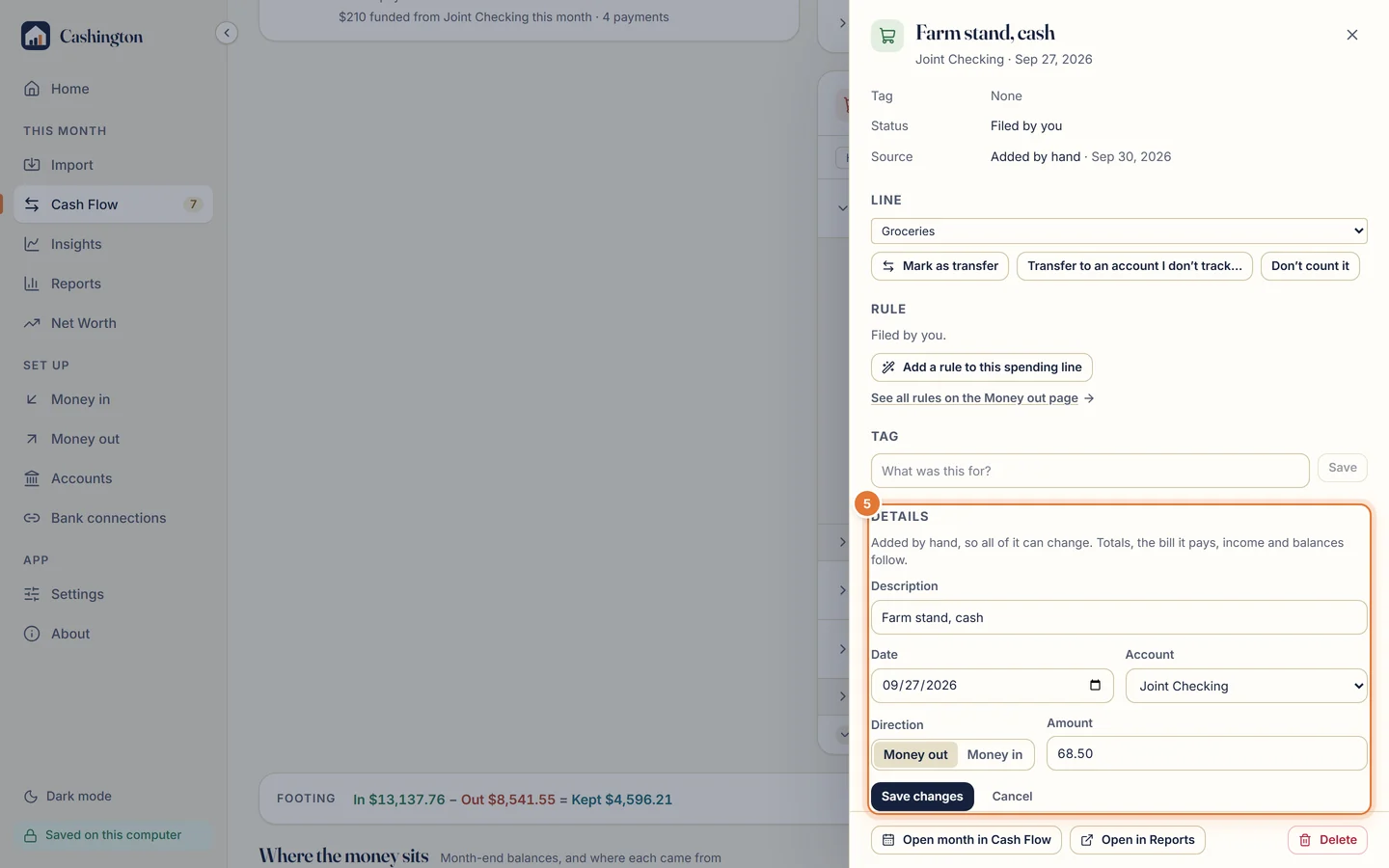
A row you added yourself can change its description, date, account and amount. A statement row keeps the bank's record; you change its line, tag or split instead. Click Save changes.
-
Split it into parts
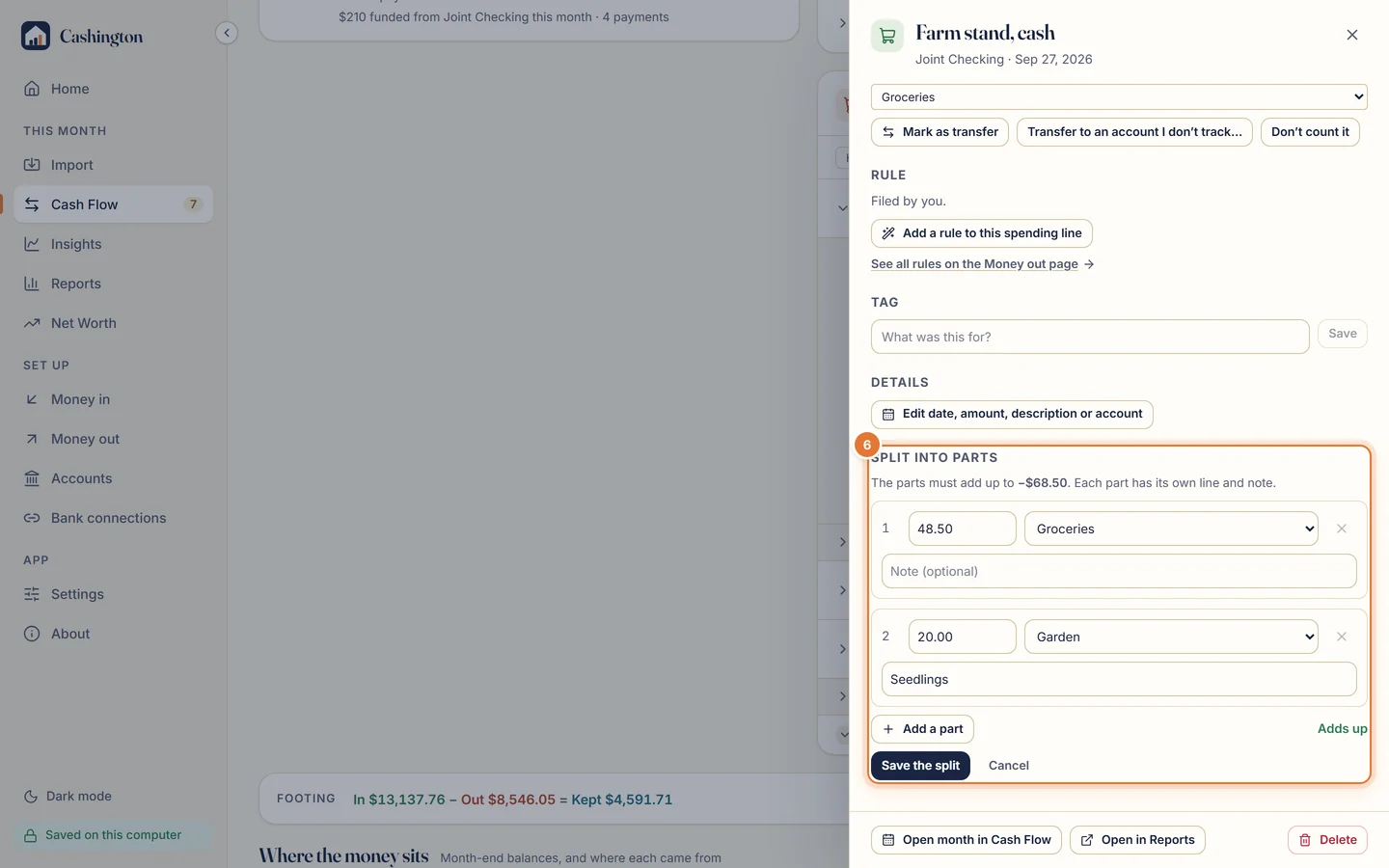
Click Split into parts to share one row between lines. Give each part an amount, a line and a note. When the parts add up to the original, Adds up appears; click Save the split.
-
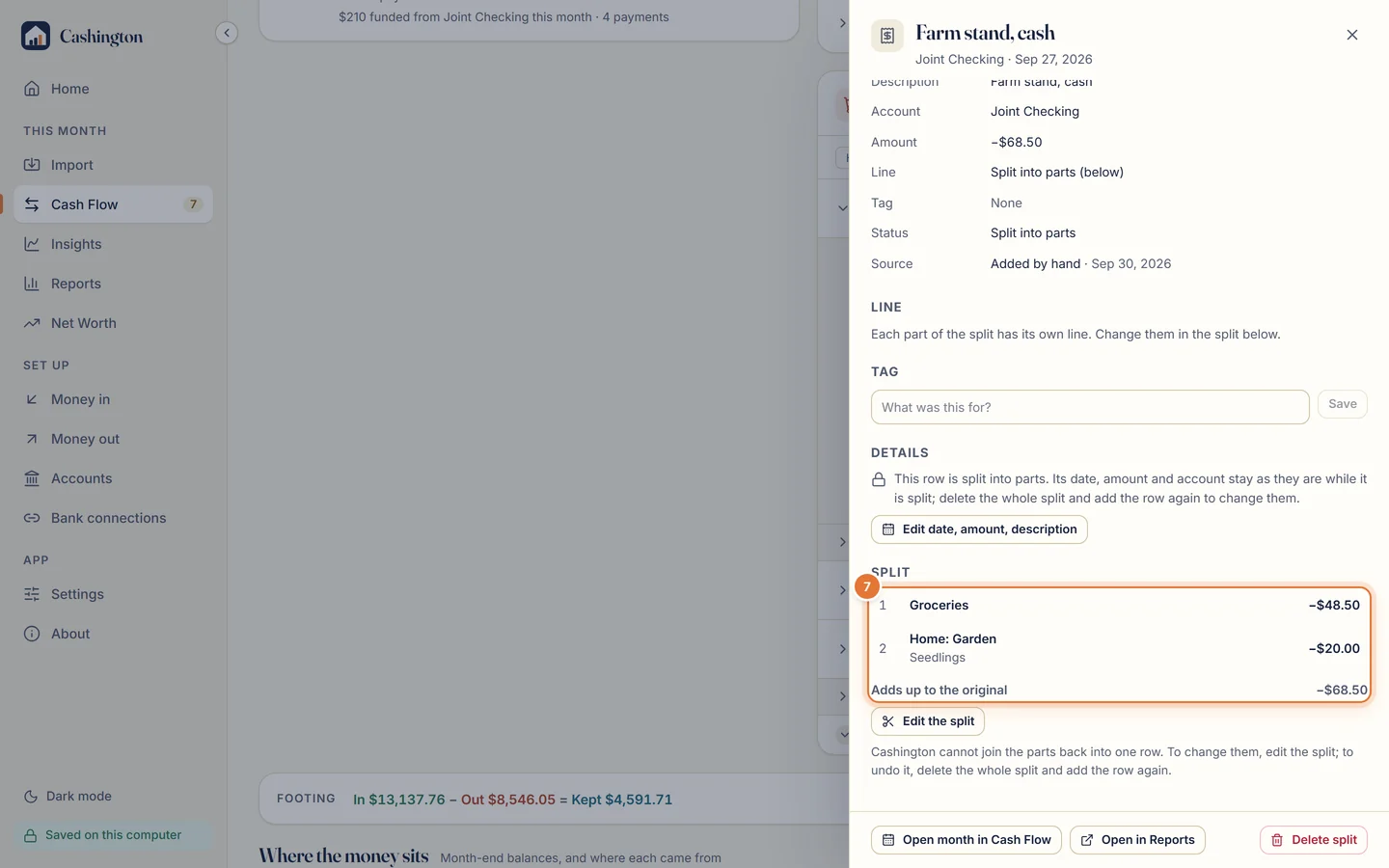
Each part counts on its own line
The drawer lists the parts, and each counts on its own line in Cash Flow. There's no unsplit: click Edit the split to change the parts, or delete the row altogether.