Cashington
Guides Start here
Import a bank statement
What you'll do
Download your transactions from the bank's or card's website as a CSV file and bring them into Cashington. You see every row before anything is saved, with possible duplicates and card payments already marked, and nothing counts until you commit. Statements always work; a bank connection is optional (see Connect your banks).
Before you start: An account for the statement (see Get started) and a CSV file downloaded from your bank or card.
Updated October 2026 · Cashington 0.2.3 · 5 steps · screenshots show an invented household
-
Drop the file on Import
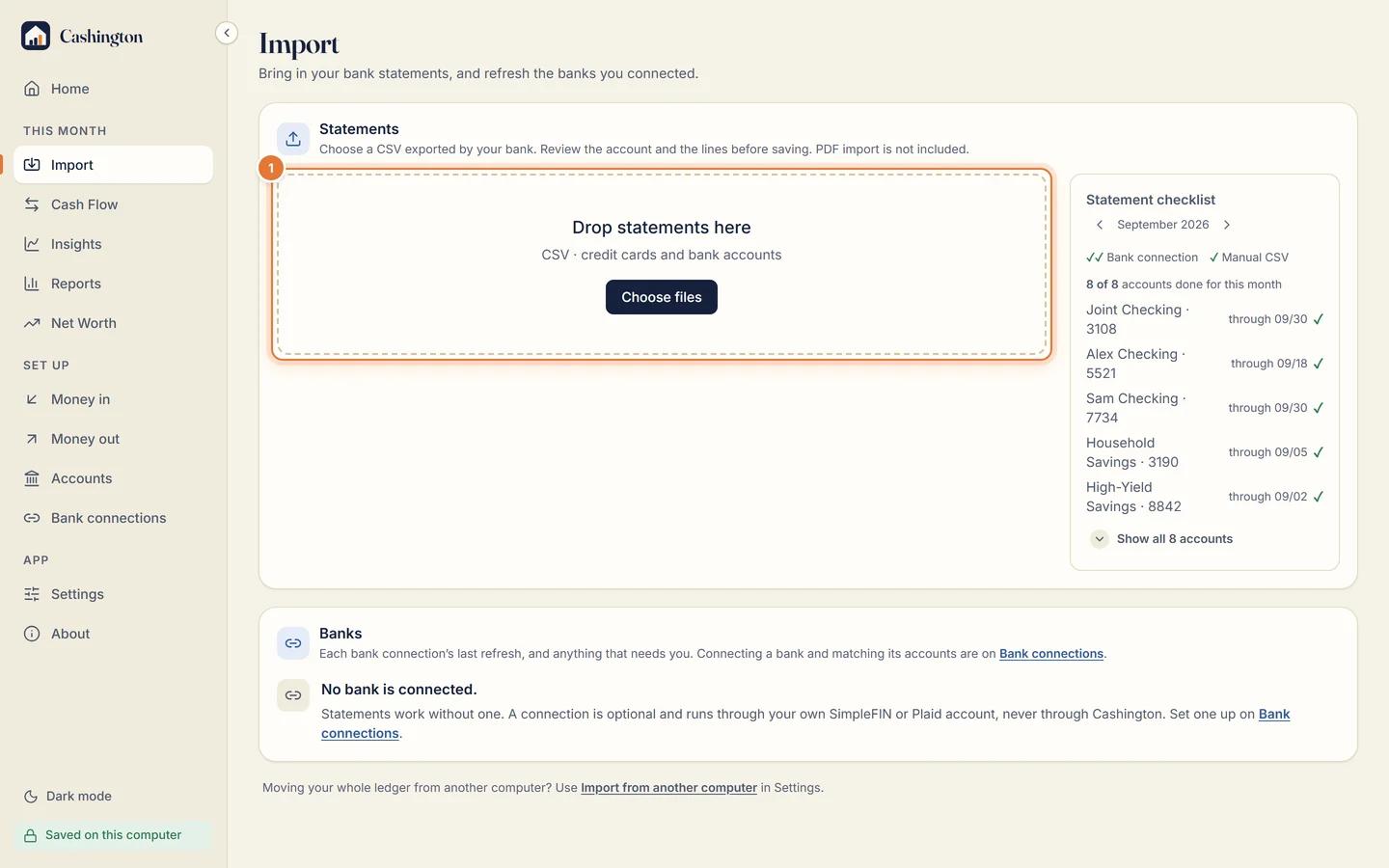
Open Import, the first page under This month in the menu. Under Statements, drop the CSV your bank exported, or click Choose files. Banks, below it, is where bank connections refresh, if you set any up.
-
Choose the account
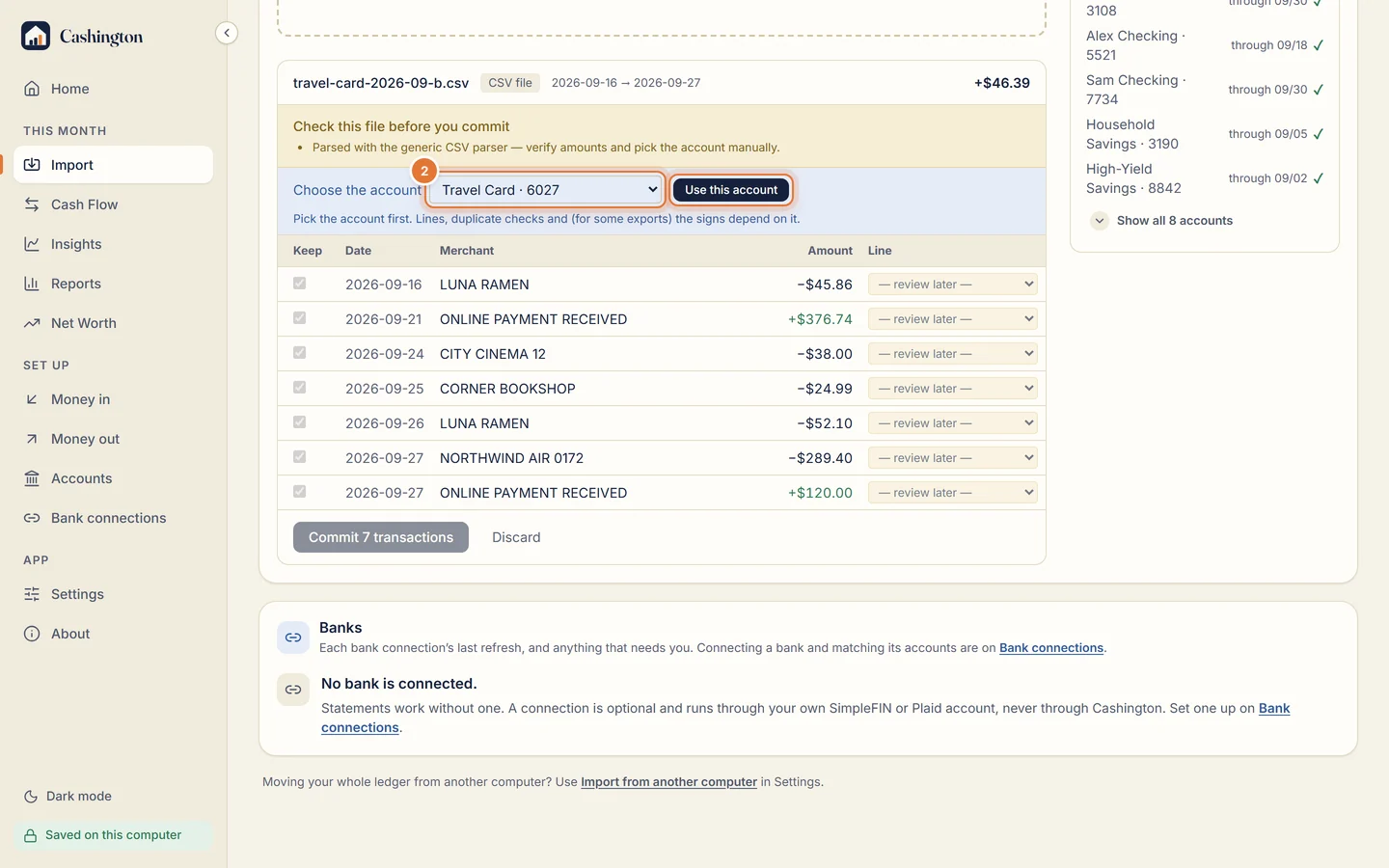
Cashington reads the file and asks which account it belongs to. It picks the account for you only when the file proves it, by the bank's name or the last four digits. Otherwise pick it yourself, then click Use this account.
-
Leave the flagged rows alone
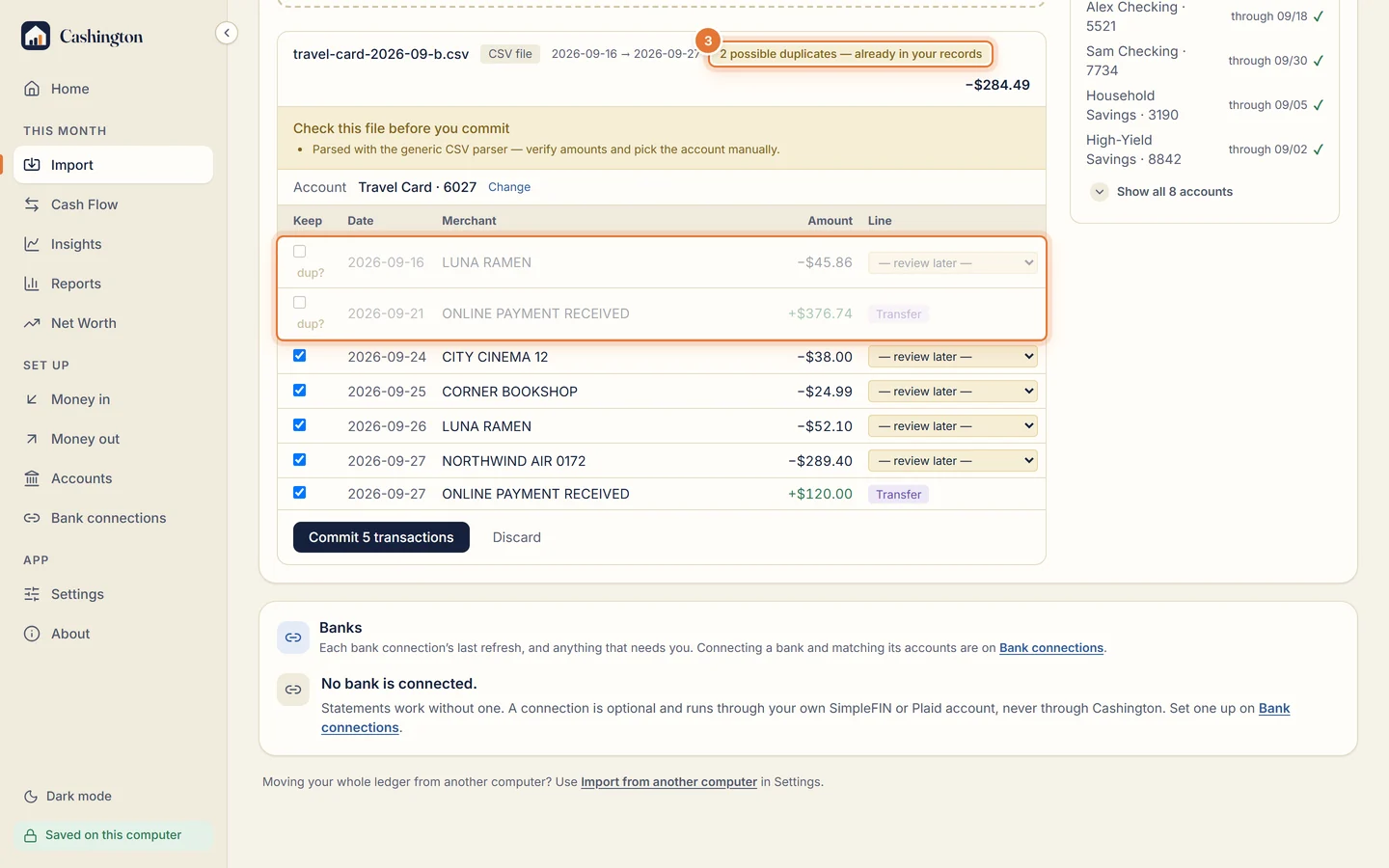
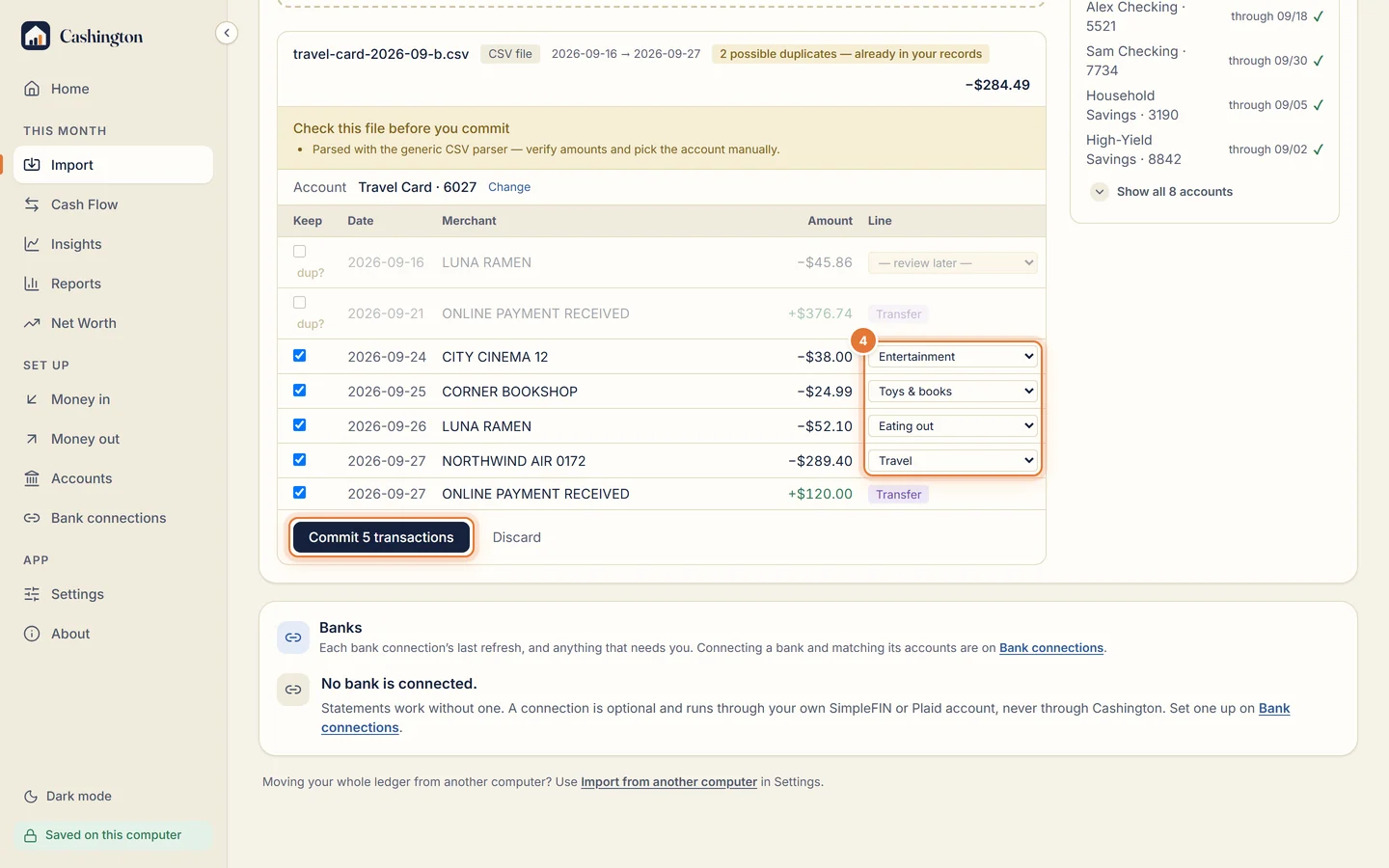
Rows already in your ledger are flagged dup? and left unticked, so they aren't added twice. A card payment is marked Transfer: it's money moving between your own accounts, not spending.
-
Give rows a line, then commit
Pick a line for each new row, or leave it for later: rows with no line wait in Cash Flow's Needs a look. Click Commit to add them.
-
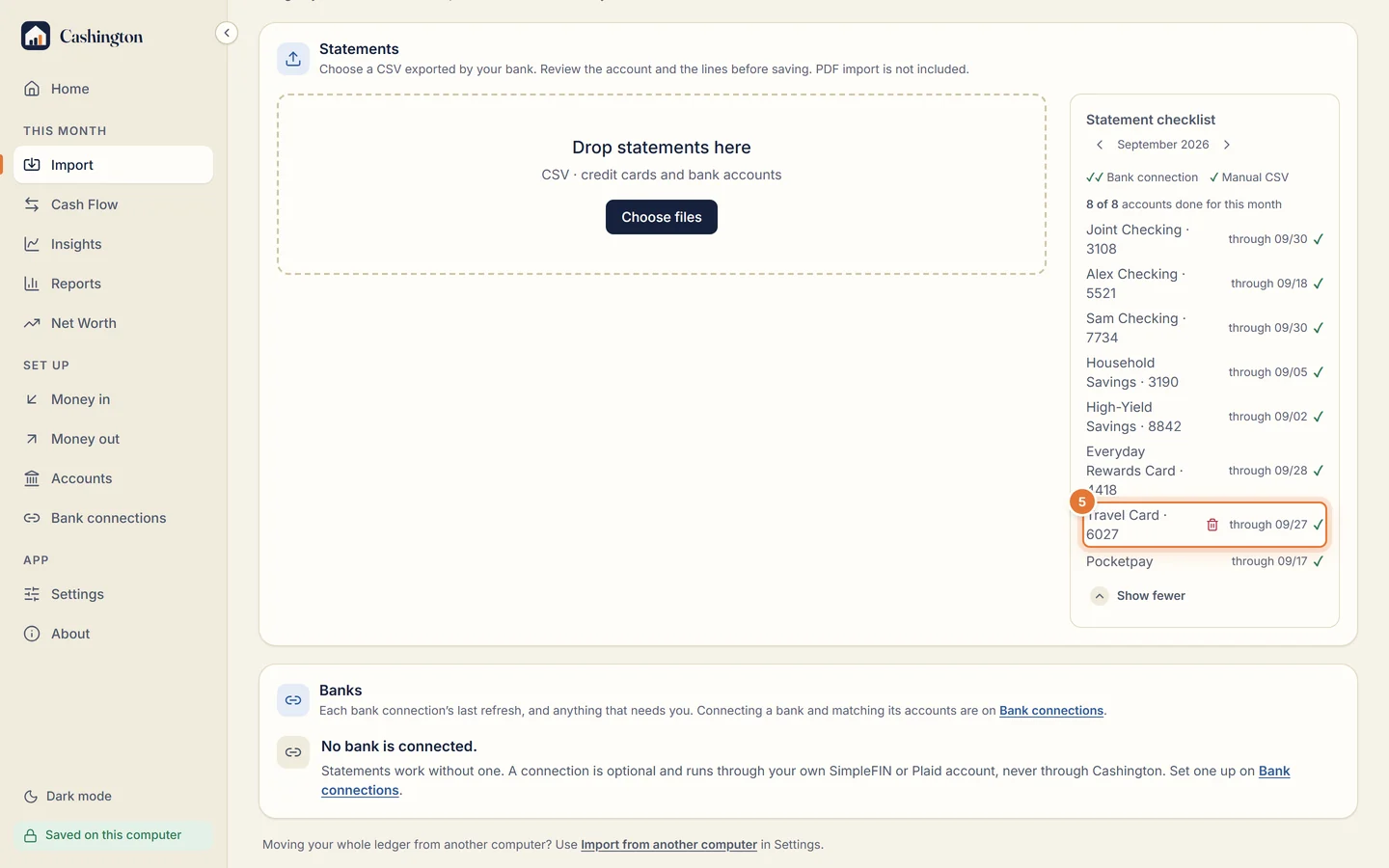
Check the statement checklist
The Statement checklist beside the drop zone now shows the card covered through the last date in the file, and the new rows count in Cash Flow.