Cashington
Guides Start here
Connect your banks
What you'll do
Statements always work, and a bank connection is optional. It runs through your own SimpleFIN account (the easy option) or your own Plaid developer keys (Advanced), never through Cashington. You match each of the bank's accounts once: everyday accounts to the ones in Cashington, loans and investment accounts to Net Worth. After that, a refresh on Import brings in the new rows and the balances.
Before you start: A SimpleFIN Bridge account with your banks linked, or a Plaid developer account with its keys. Your accounts set up in Cashington (see Get started).
Updated October 2026 · Cashington 0.2.3 · 11 steps · screenshots show an invented household and test banks
-
Open Bank connections
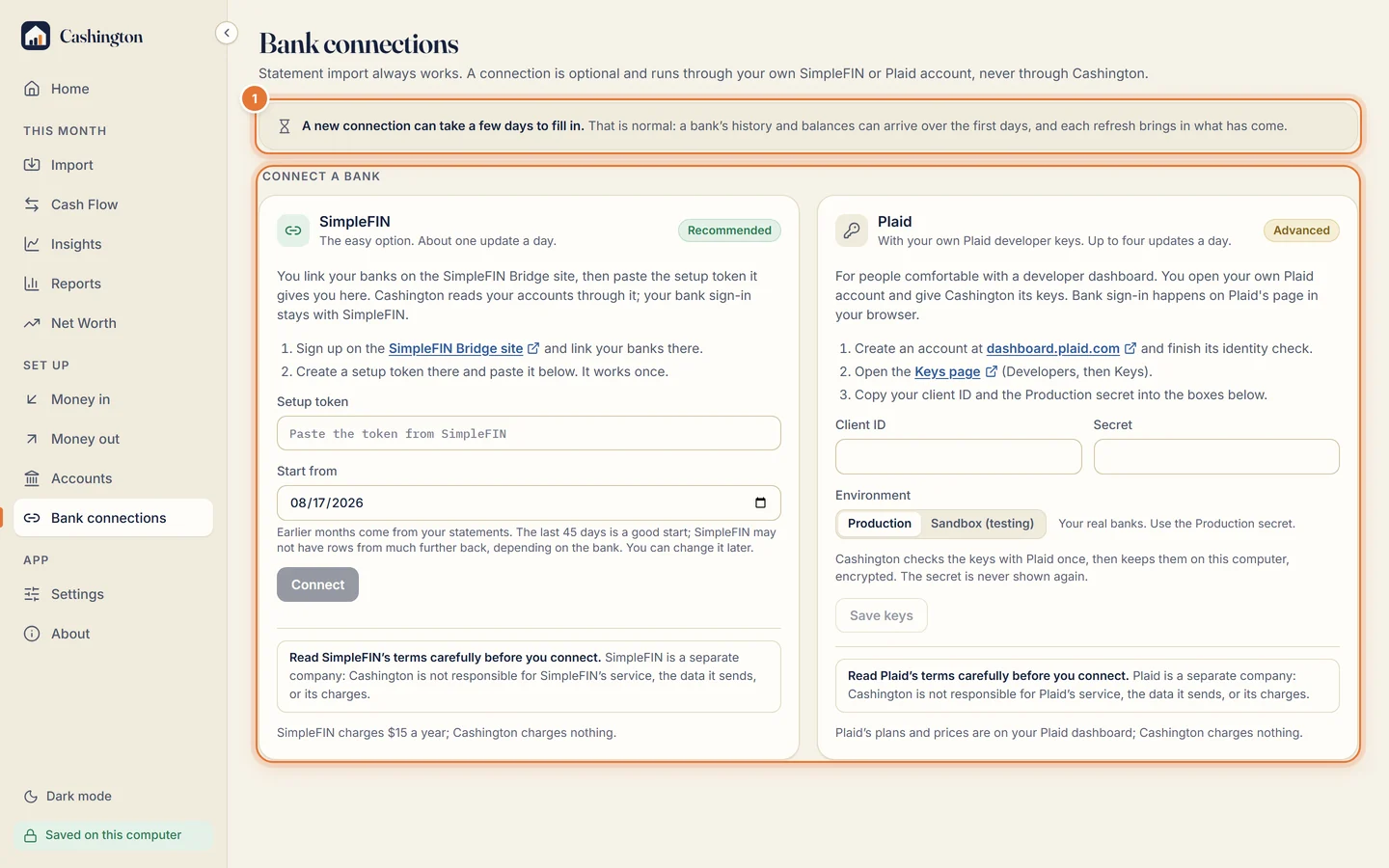
Open Bank connections, under Set up in the menu. There are two ways in: SimpleFIN, the easy option, and Plaid with your own keys, marked Advanced. A new connection can take a few days to fill in; that is normal.
-
Paste a SimpleFIN setup token
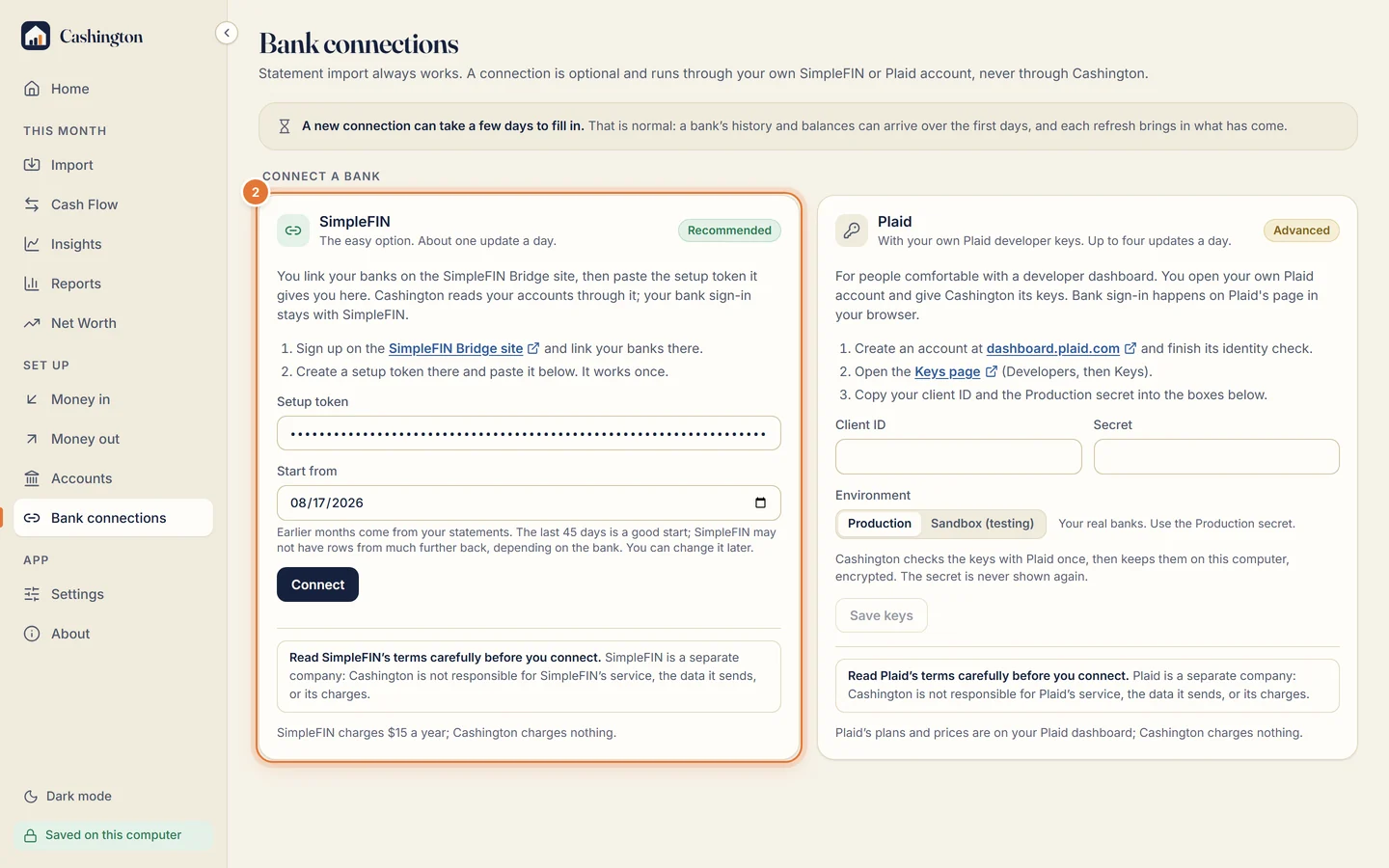
Link your banks on the SimpleFIN Bridge site and create a setup token there. Paste it into Setup token, keep the start date (the last 45 days is a good start) and click Connect. A token works once.
-
Match the everyday accounts
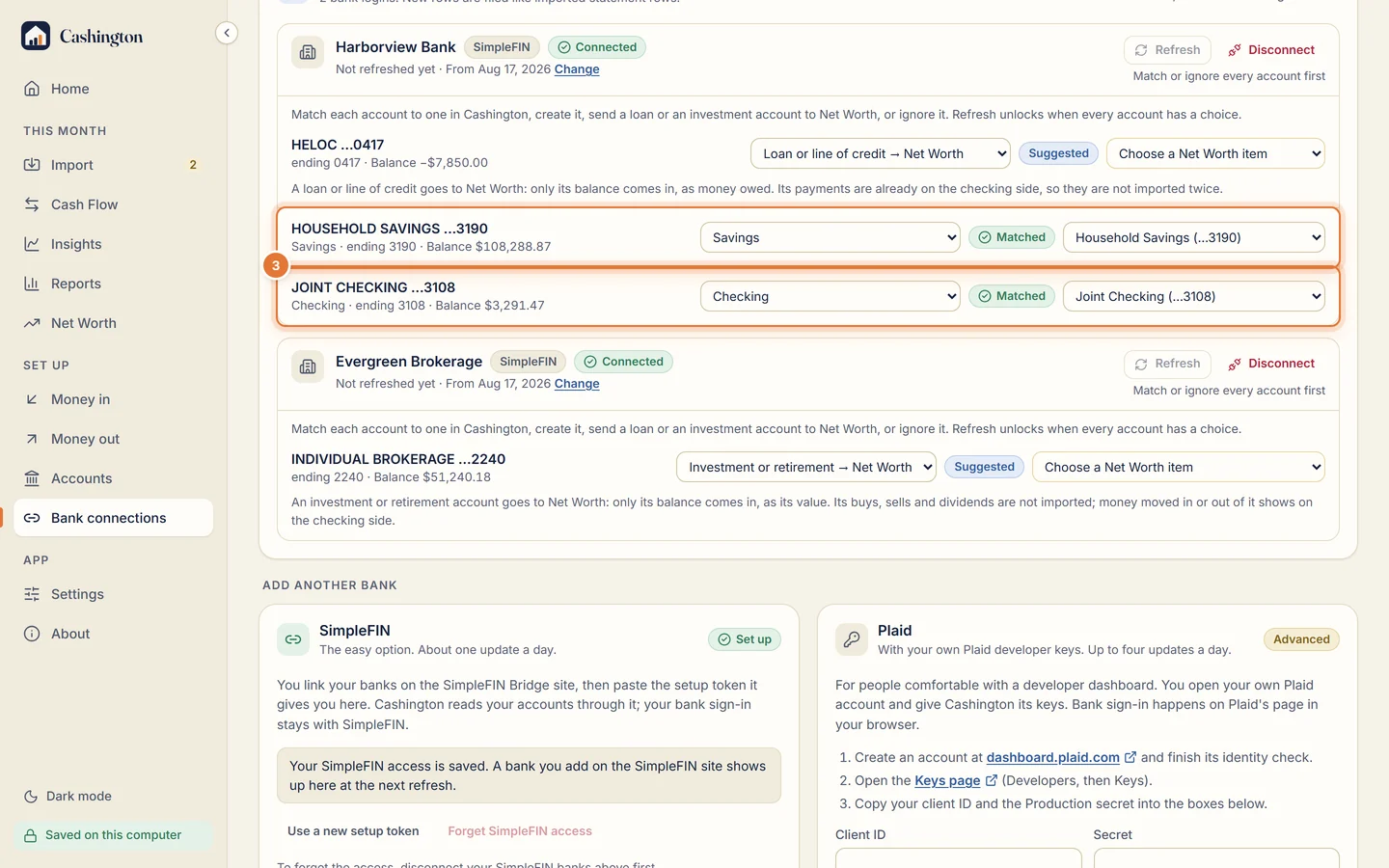
Each bank lists its accounts. For each one, pick its type, then the account it is in Cashington, or create it. Here the checking and savings accounts are matched to Joint Checking and Household Savings.
-
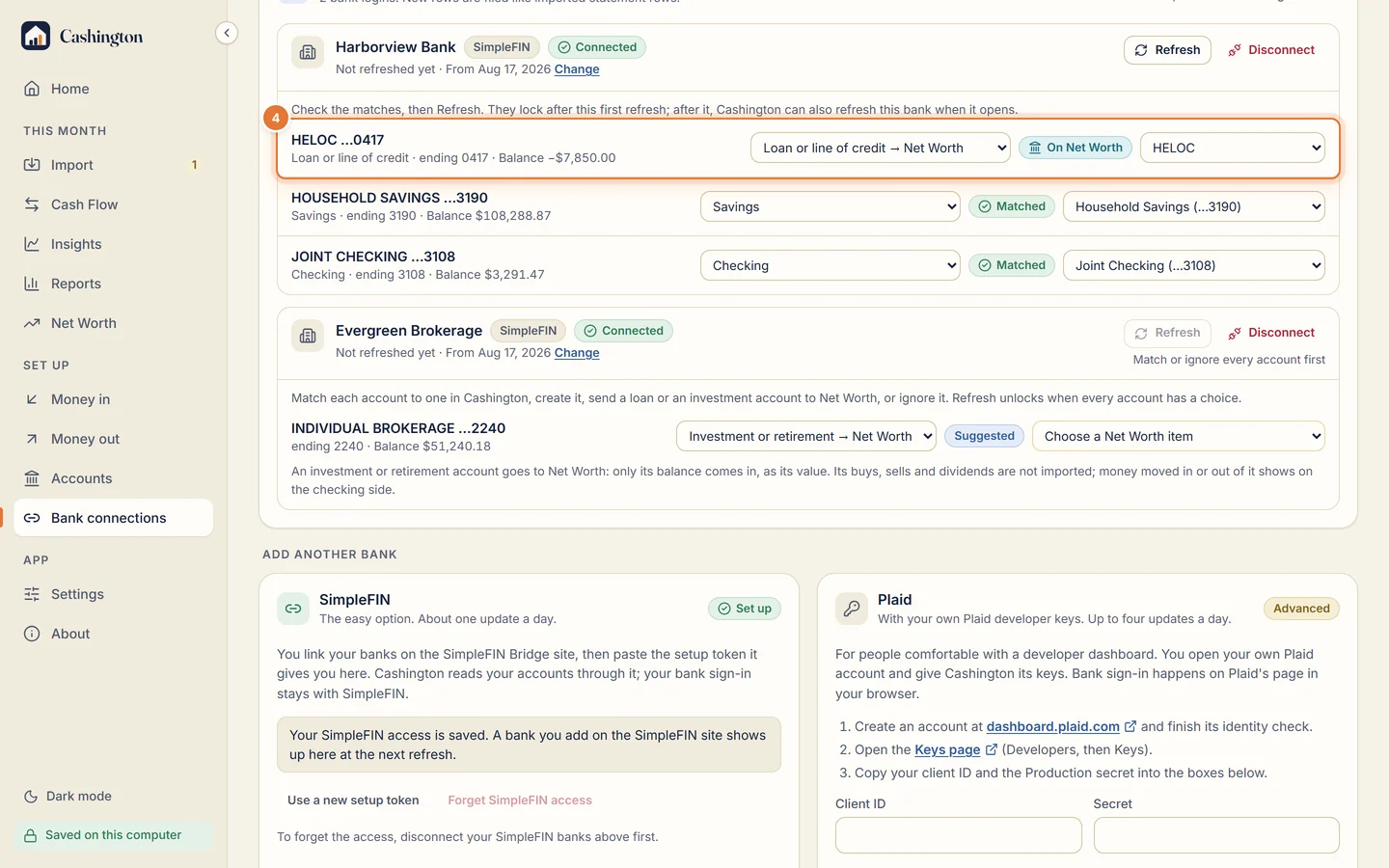
Send a loan to Net Worth
A loan or line of credit goes to Net Worth instead of Cash Flow: pick Loan or line of credit, then its Net Worth item, or create one. Only its balance comes in, as what you owe; its payments already show on the checking side.
-
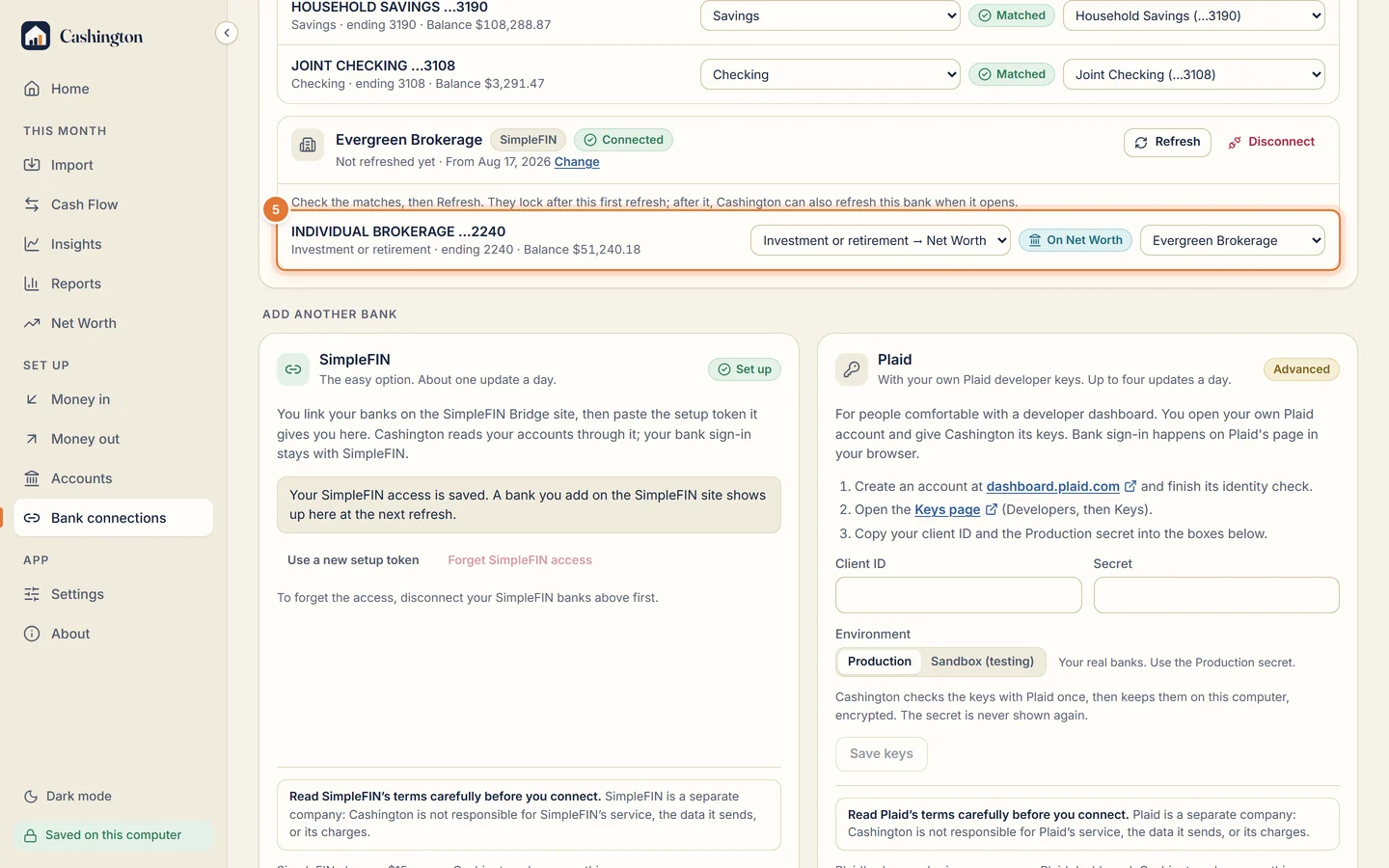
Send an investment account to Net Worth
An investment or retirement account goes to Net Worth too: its balance becomes the item's value. Its buys, sells and dividends are not imported; money you move in or out shows on the checking side.
-
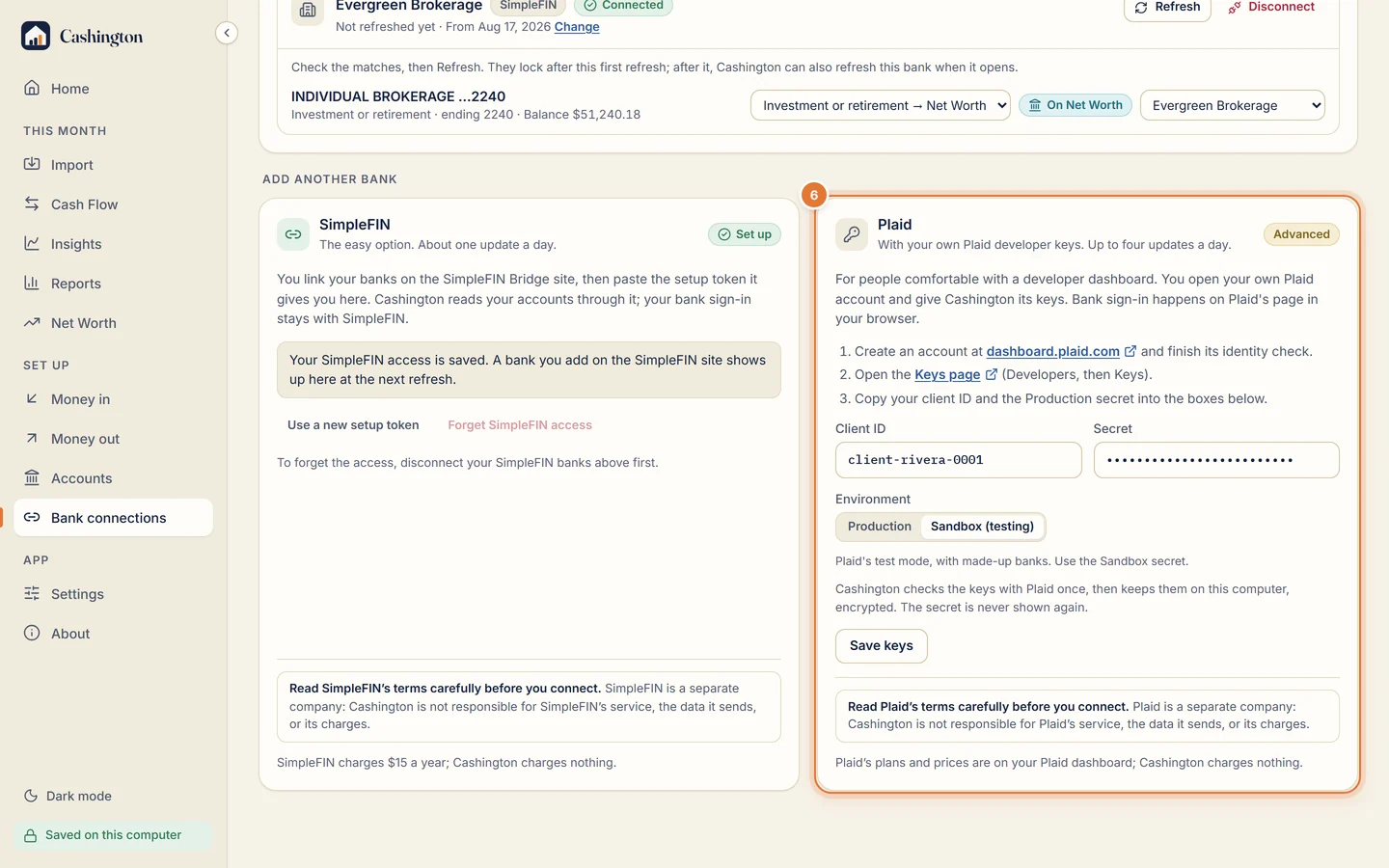
Or use Plaid with your own keys
Plaid is for people comfortable with a developer dashboard. Copy the client ID and secret from your Plaid dashboard's Keys page, choose the environment (Production for your real banks; Sandbox is Plaid's test mode, used for these pictures), and click Save keys. Cashington checks them once and keeps them on this computer, encrypted.
-
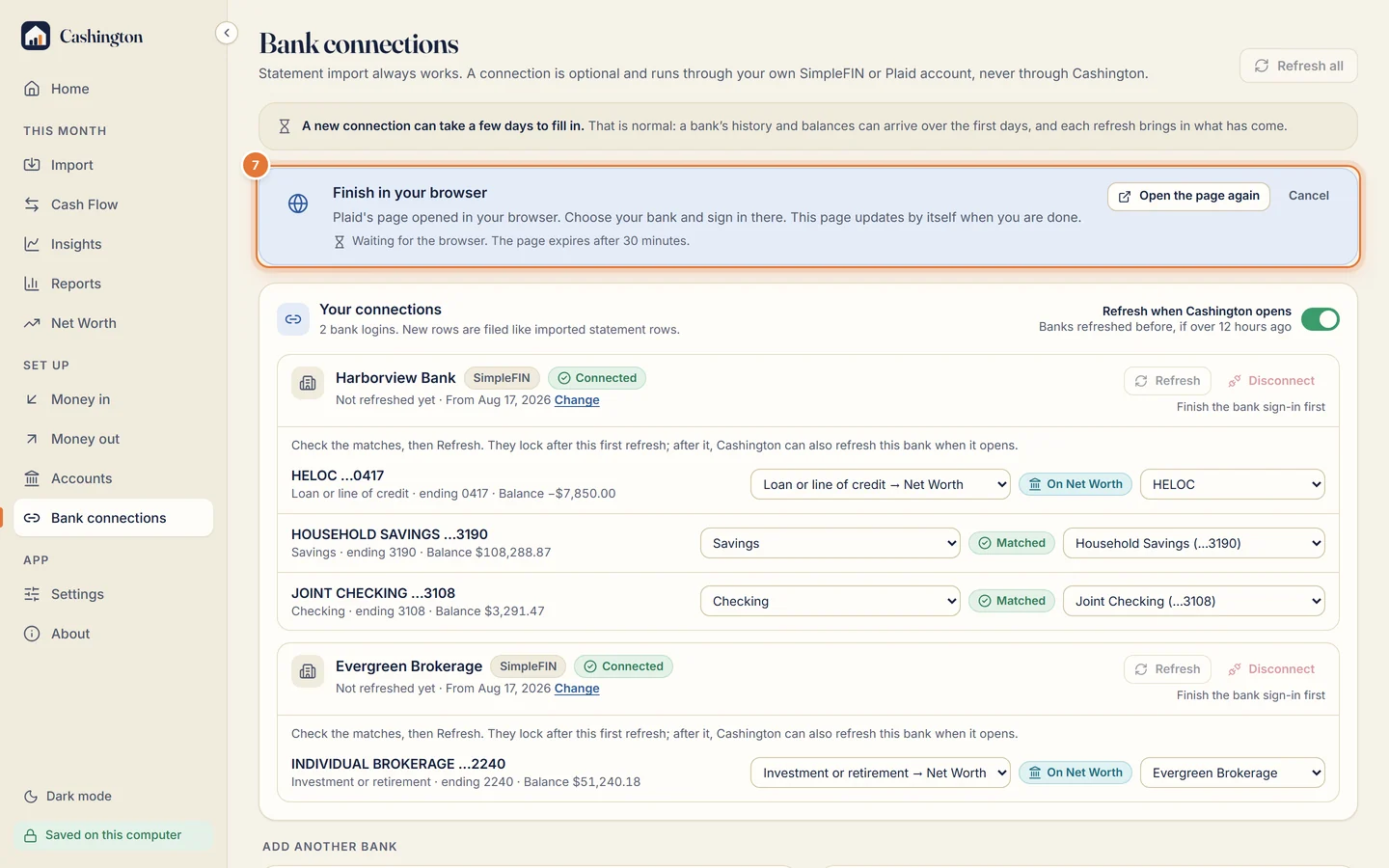
Sign in on Plaid's page
Click Connect a bank. Plaid's page opens in your browser: choose your bank and sign in there. Cashington waits and updates by itself when you are done.
-
Check the new bank's matches
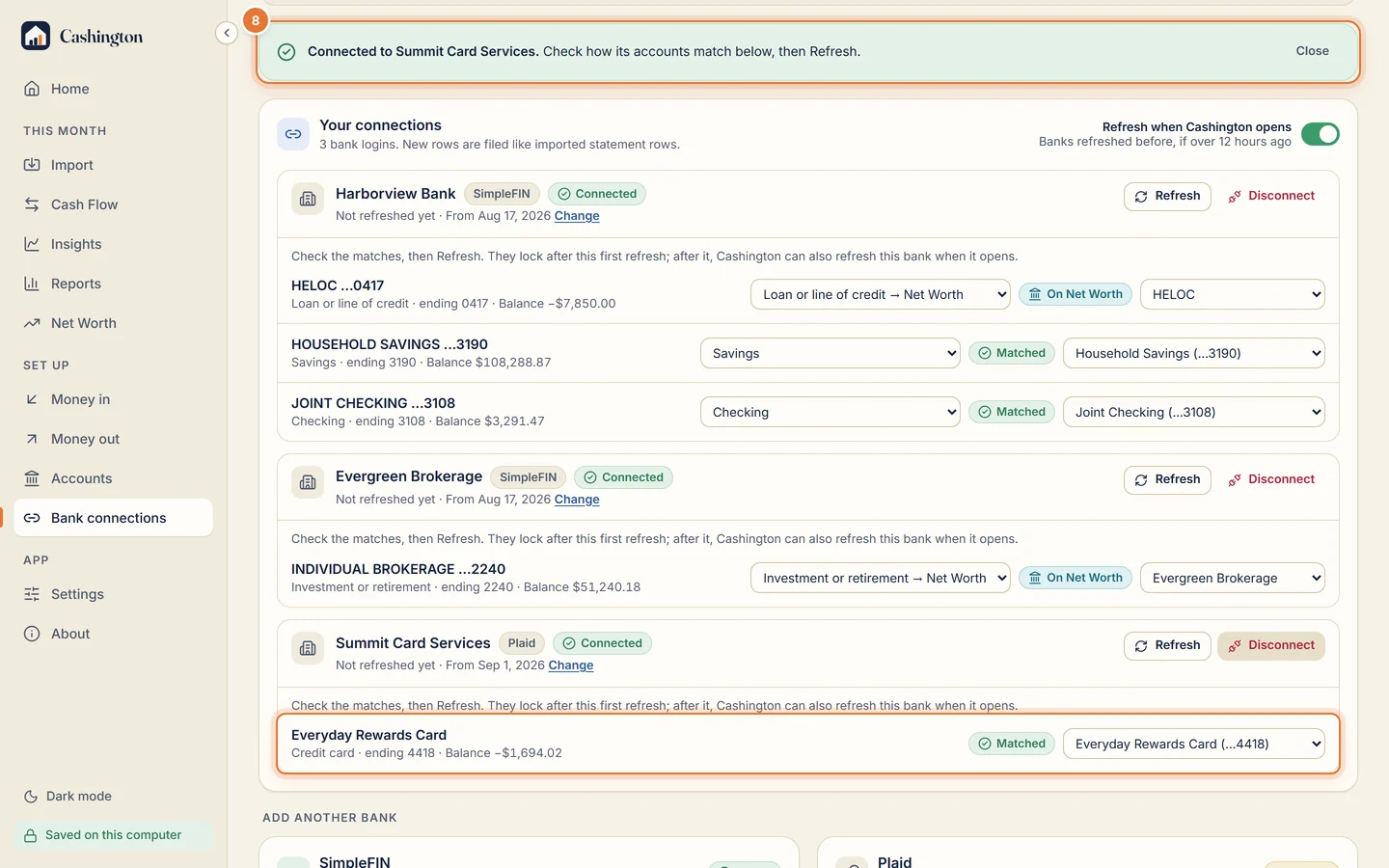
Connected. The new bank's accounts are listed; an account whose last four digits match one in Cashington is matched for you. Check every match before the first refresh: they lock after it.
-
Refresh on Import
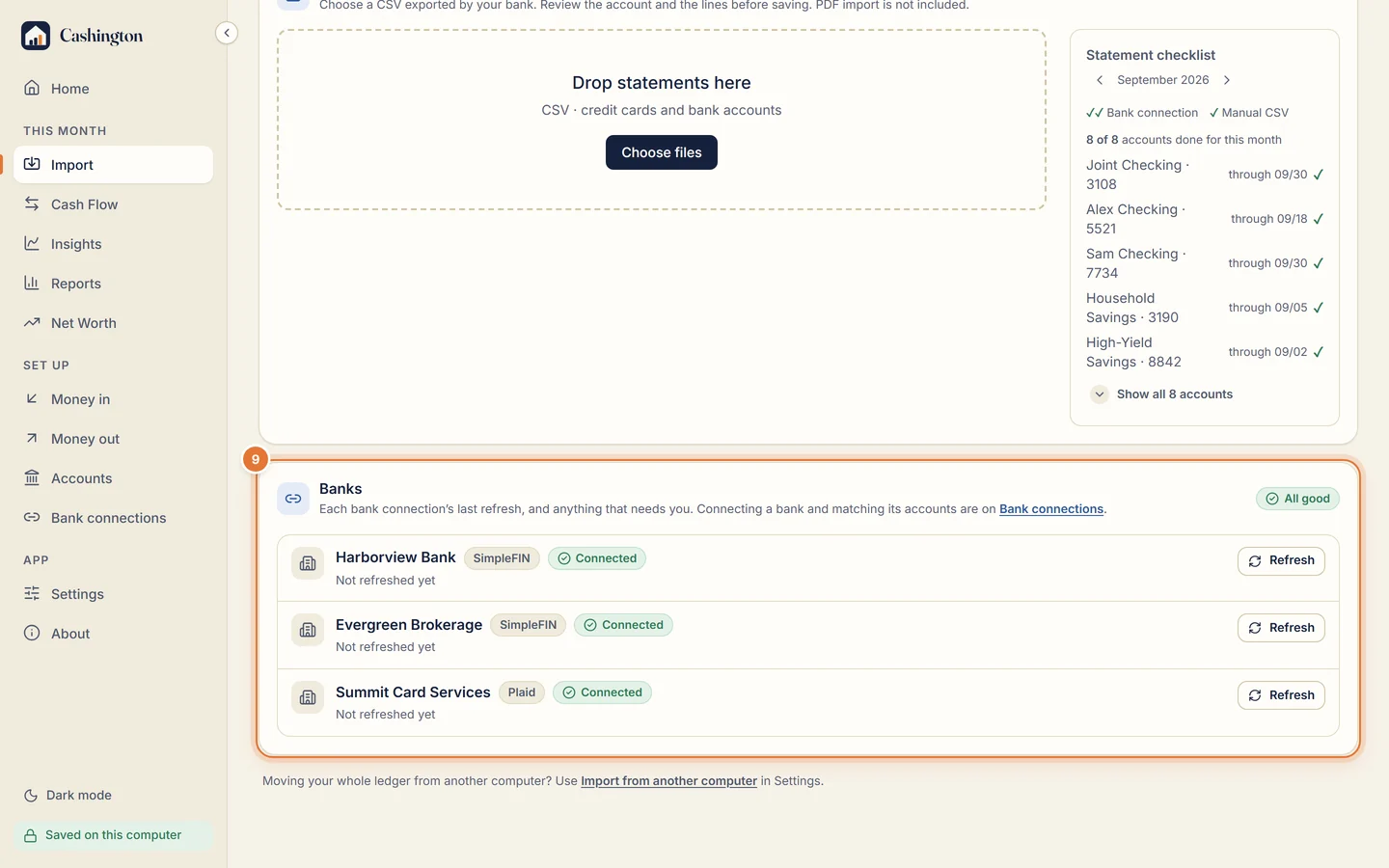
Refreshes happen on Import, below your statements. Banks lists each connection with its last refresh and anything that needs you. Click Refresh on one bank, or Refresh all banks at the top of Import.
-
See what came in
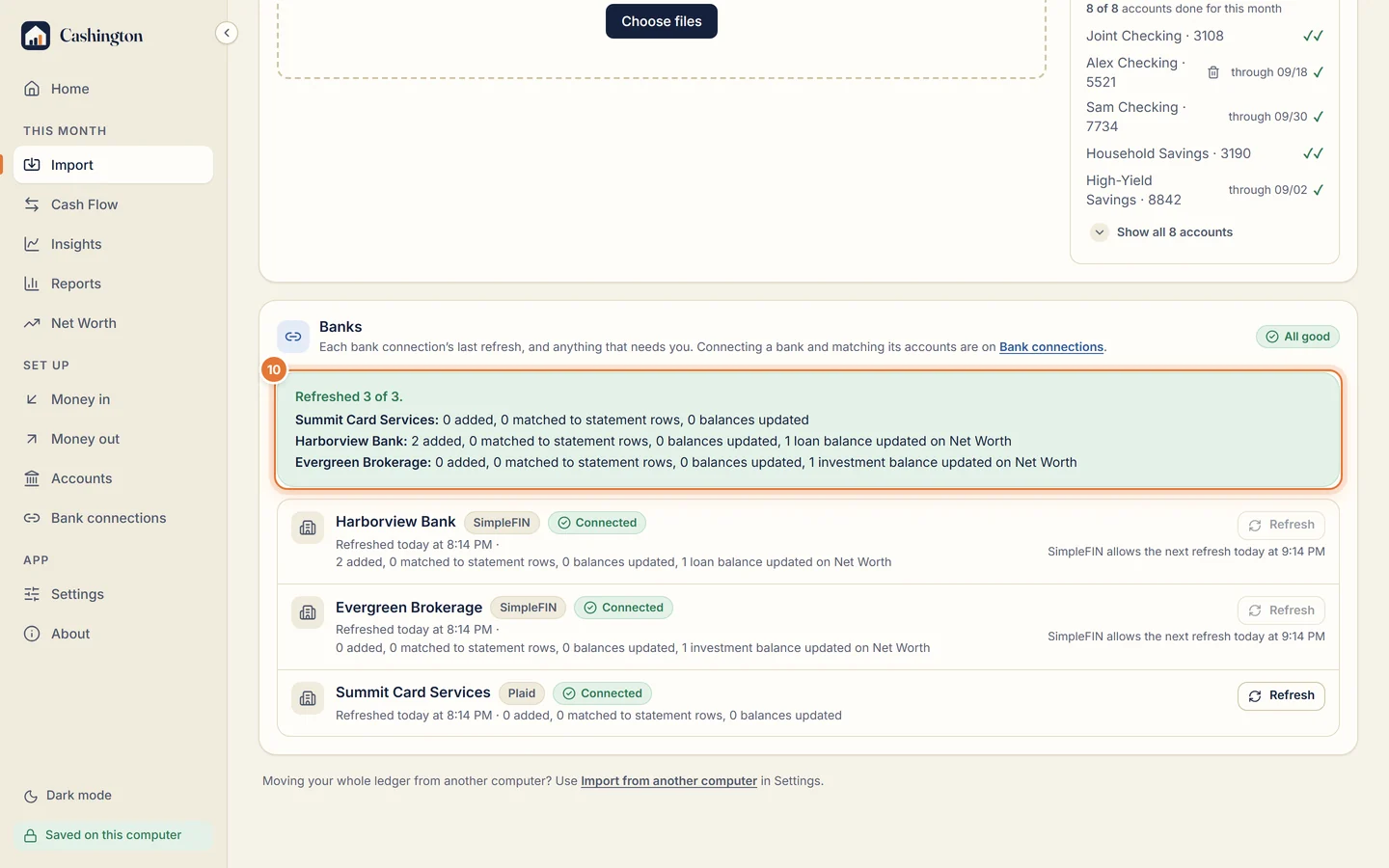
The refresh brings in the new rows, filed like imported statement rows, and updates the balances, including the loan and the investment account on Net Worth. After the first refresh, Cashington can also refresh each bank when it opens.
-
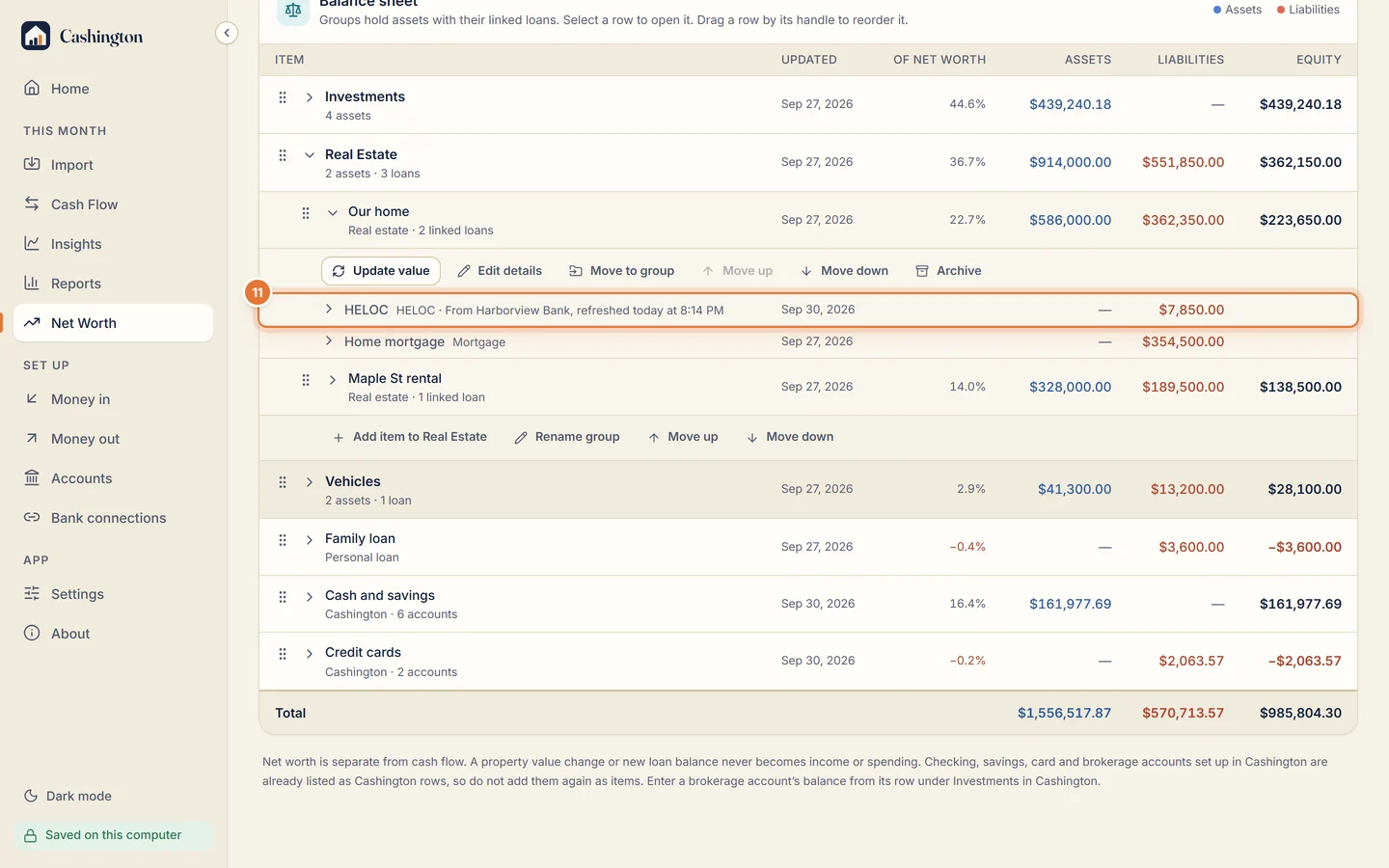
The loan on Net Worth
On Net Worth, the HELOC now says which bank keeps it current. A value you type yourself still wins on its date.